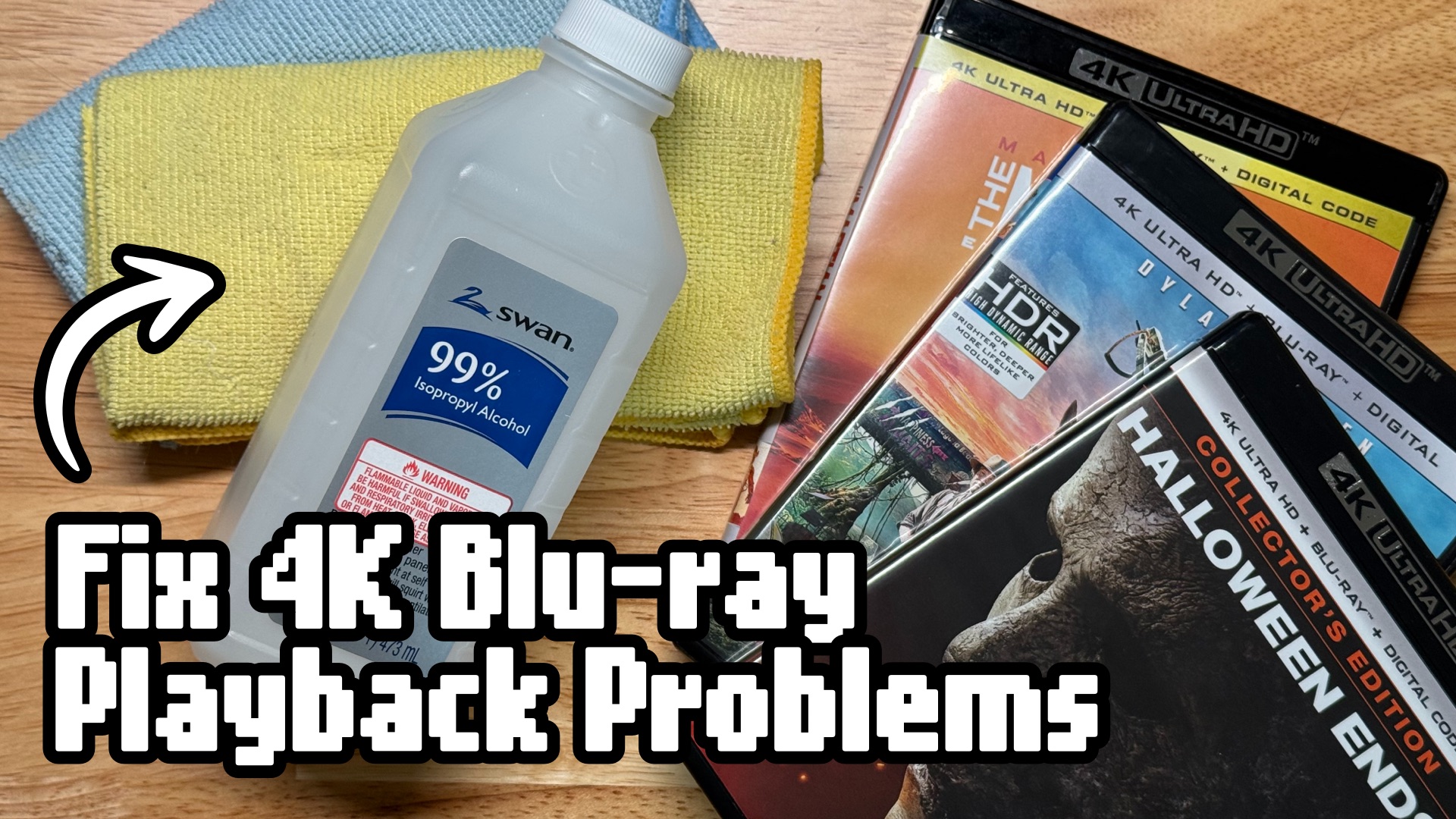

First Steps: Check the Disc
The 4K UHD Blu-ray format is pushing optical disc technology about as far as it can go. A triple-layer 100GB disc is cramming twice the data of a standard dual-layer Blu-ray into the same disc of plastic, with less margin for error. That’s why 4K discs are more sensitive to dust, fingerprints, and worn-out hardware than regular Blu-rays are.
When a 4K disc starts freezing, glitching, or pixelating, don’t panic and don’t assume you need a new player yet. Work through these steps and see if it’s fixable.
First, rule out the disc itself. This is the quickest and easiest fix.
Is It Dirty?
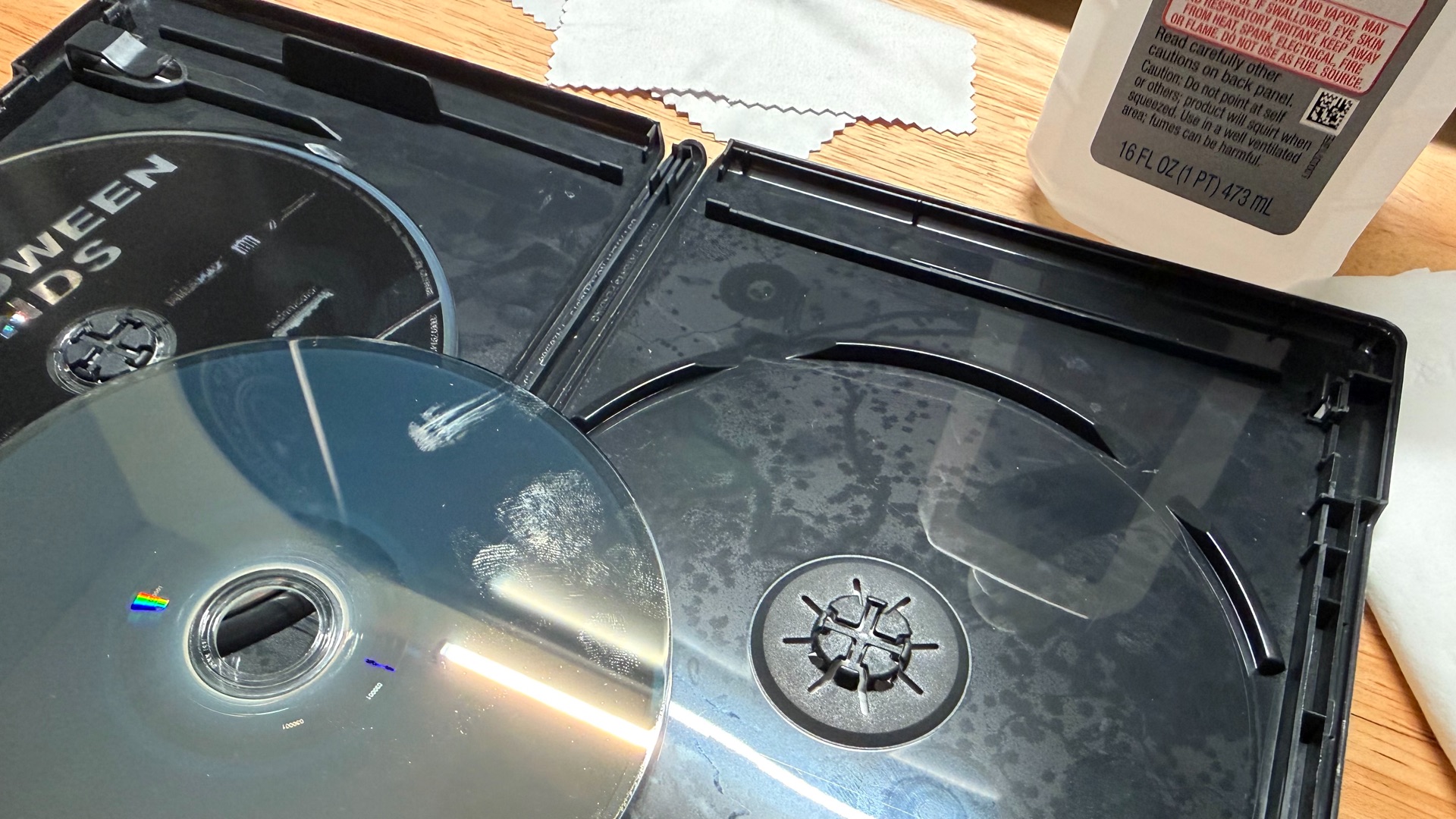
Hold the disc up to the light and check the data side (the shiny, unlabeled side) for dust, fingerprints, or scratches. Fingerprint smudges and dust are enough to cause a laser to lose its lock, especially on a triple-layer disc where the layers are stacked closer together. If it needs a clean, here’s how to do it.
Step-by-Step Cleaning Guide
This works for all disc media. You want to use microfiber cloths for any wiping.
- Hold the disc by the edges. We don’t want fresh fingerprints added.
- Blow off loose dust. Before wiping the disc, blow on the surface to remove loose dust or grit. Wiping a gritty disc can grind that grit in and cause more scratches. A can of compressed air or a Swiffer works great.
- Wipe in straight lines. Start at the center hub and wipe straight outward to the rim, like the spokes of a bicycle wheel.
- Never wipe in circles! Circular scratches can run parallel to the data tracks and cause uncorrectable read errors.
- Use a damp microfiber cloth for tough grime. If a dry pass won’t remove oily fingerprints or dried-on smudges, lightly dampen a corner of the microfiber cloth with your 99% isopropyl alcohol. Wipe the disc, then immediately dry it with a clean, dry section of the cloth so nothing has a chance to sit and evaporate on its own.
Avoid cleaning with these:
- Paper products. Tissues, napkins, and paper towels are made of wood pulp and will micro-scratch the surface.
- Circular cleaning machines. Those motorized crank-handled disc cleaners will ruin things.
- Harsh chemicals. Window cleaner, acetone, and dish soap can all degrade the disc’s protective plastic layers.
Clean It Anyway
Even if the disc looks spotless, there might be residue from case off-gassing. Certain plastic Blu-ray cases can release chemical vapors over time. Those vapors cling to the disc as a faint, oily, almost invisible haze. You usually can’t see it.
I’m convinced this is behind most of the 4K playback problems I’ve personally dealt with. Give the disc and the inside of the case the same cleaning treatment described above, or just replace the case outright. This is the first thing I always check when I have playback trouble.
Is It Scratched?
If the disc is clean, but scratches remain and you think that’s the playback problem, don’t worry, you still have an option. Take it to a used media shop and ask if they have a disc resurface machine. A polish or two in a professional machine can get scratched up discs playing again. It should only cost a few bucks per disc.
Don’t use toothpaste, car polishes, or one of the crank Disc Dr. machines. You’ll likely make things worse. Get it resurfaced!
Dos It Have Disc Rot?
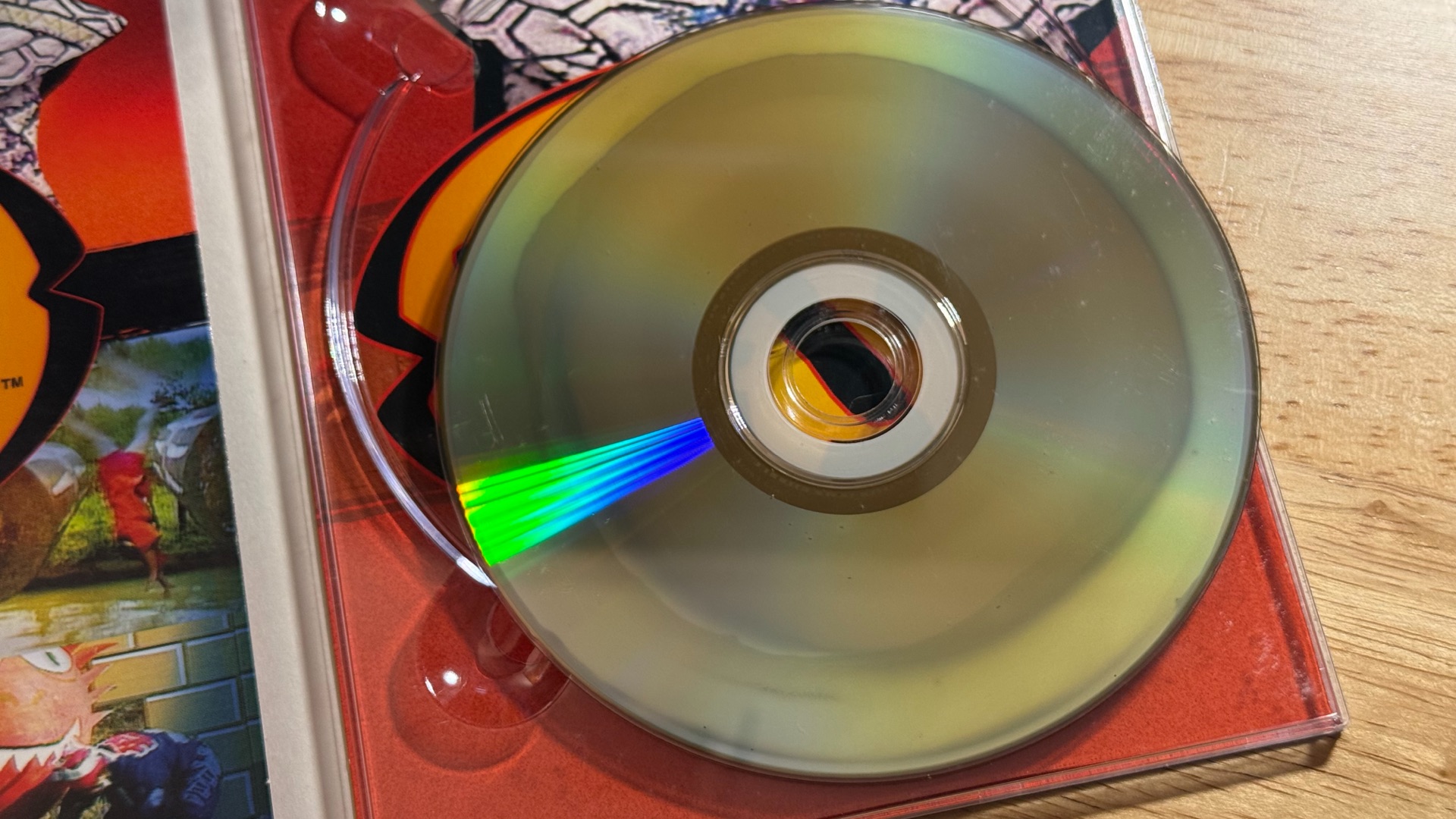
Disc rot is kind of rare and hard to see on Blu-ray, but manufacturing defects can cause it to show up early. Environmental exposure to heat, humidity, and sunlight can accelerate it. To check, hold the disc directly under a bright light or in direct sunlight and look for:
- Pinholes of light
- Discoloration or cloudiness
- Bubbly textures or delamination
- Edge bleeding
If you see any of this, no amount of cleaning will fix it.
Next Steps: It Might be the Player
If the disc is clean and shows no signs of rot, it might be the hardware.
Try Another Player
The easiest thing to try is play the disc somewhere else. A PS5 or Xbox Series X both handle 4K UHD Blu-ray discs and make convenient test devices. If the disc plays fine elsewhere, you’ve confirmed the problem is the player, not the disc.
Check the HDMI Cable
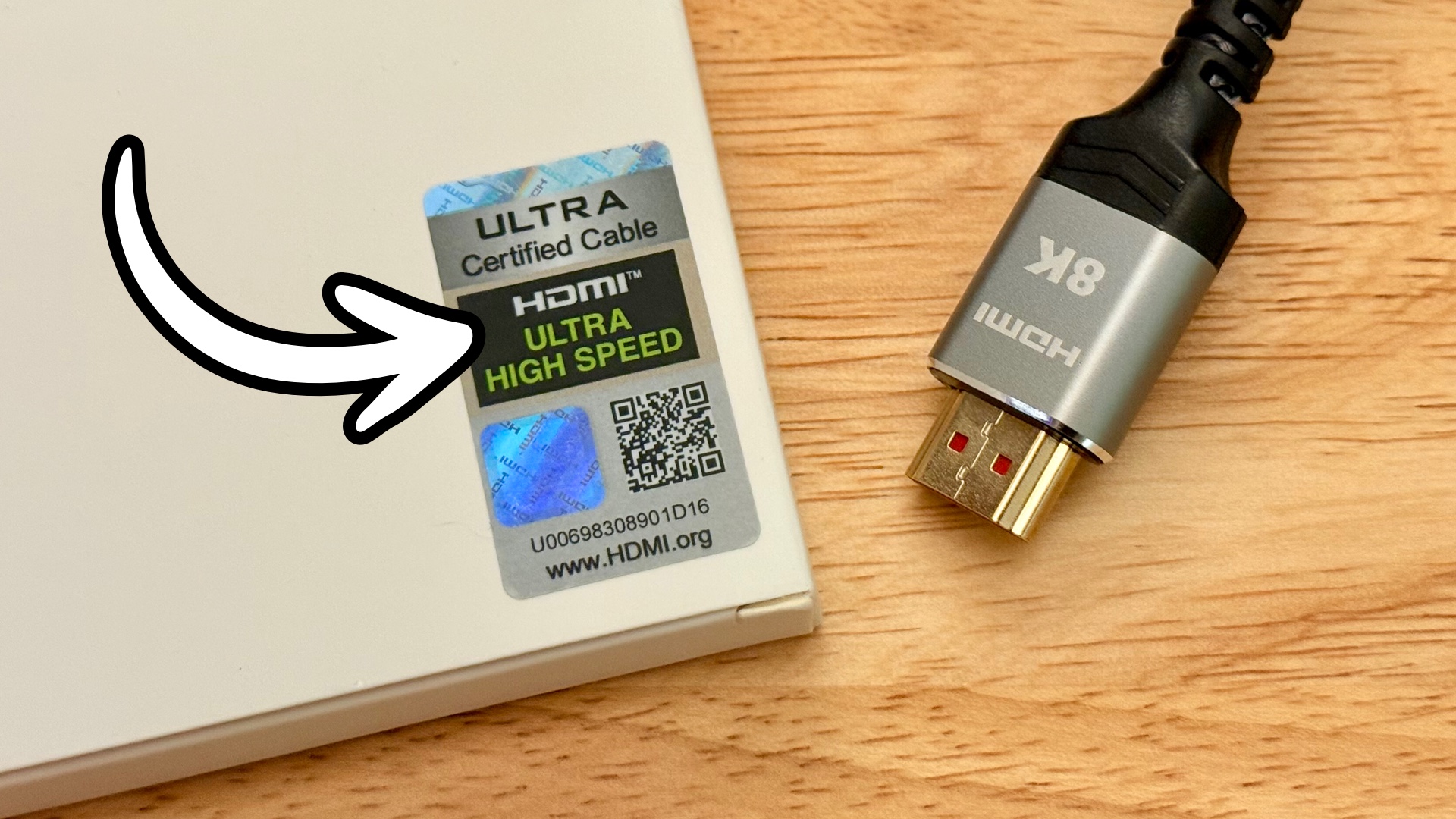
4K video with HDR is a lot of bandwidth, and not every HDMI cable found in a junk drawer can handle it. Look for a cable rated Premium High Speed (18Gbps) or better. Cheap or old cables, especially ones bundled with unrelated devices, are a common source of playback problems.
Adjust Player Settings
Dig into your player’s video output settings. If 24fps output is set to “on” or “auto” but your TV doesn’t properly support 24p playback, you’ll get stutter and judder. Try switching it to off. While you’re in there, turn off any onboard upscaling or video processing.
Also check for a firmware update. It’s a long shot, but it costs nothing but a few minutes.
Clean the Player (Carefully)
This is where things get riskier, and where you will void your warranty if you open it up. Proceed at your own risk.
- Dust the inside with canned air. Pet hair and household dust accumulate on gears and rails over time, causing components to gunk up and run hotter than they should.
- Clean the lens. Start with a Blu-ray laser lens cleaner disc, the kind with tiny brushes that spin across the lens. If that doesn’t help, open the player and blast it with some canned air. As a last resort, clean the lens directly with 99% isopropyl alcohol on a Q-tip, then immediately dry it with a second, dry Q-tip.
- Re-grease the laser rails. The rails and gears that move the laser assembly dry out with age. White lithium grease is what’s needed and a little goes a long way.
Good Luck
Sometimes, even after all the work above, the problem persists. If the glitches and stuttering happen at the exact same point in the movie every single time, that’s a strong indication it’s a manufacturing defect with that specific disc, not something fixable. There’s nothing left to try. Exchange the disc if you can, or fall back to the 1080p Blu-ray version and wait for a better pressing.
Here’s a great video on how to clean discs:


Start the conversation