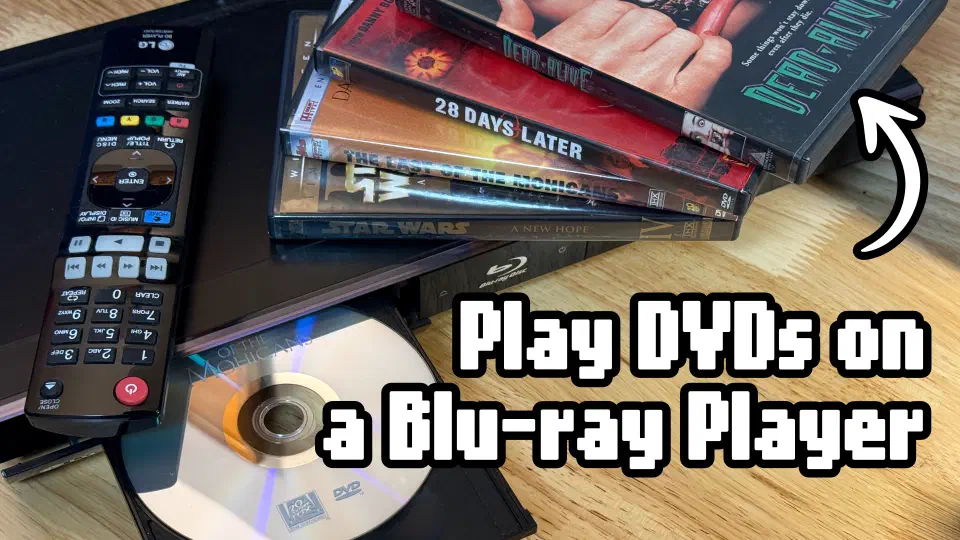

Part 2: The Players
Put in a disc. The player spins it up. The picture appears on your TV. Seems pretty straightforward, but what happens between those two moments is more involved than you’d think. The hardware you choose to read those discs makes a big difference. Especially if you’re playing older formats on a modern display. A cheap player and a quality player reading the same DVD can produce noticeably different results on a 4K TV.
Part one of this series covers what’s encoded on each format and how DVD handled the engineering constraints of its era. Part two is about the hardware that reads those discs and what it does with the signal before it reaches your screen.
DVD: a Format Full of Secrets
4K Blu-ray, Blu-ray and the amazing engineering feats of DVD.
Two Lasers in One Box
A Blu-ray player isn’t just a DVD player with a firmware update. The two formats use different laser technology.
Blu-ray discs have smaller data pits and use a 405nm blue-violet laser to read them. DVDs use larger pits and require a 650nm red laser. The wavelengths are not interchangeable. So a Blu-ray player contains both lasers, switching between them depending on the format.
4K Blu-ray players have both lasers as well. The 4K format uses the same blue laser as standard Blu-ray but can read the extra data layers 4K discs have.
The Backwards Compatibility Chain
The compatibility between these formats only flows in one direction.
4K Blu-ray → Blu-ray → DVD → CD
A 4K Blu-ray player is backwards compatible with previous formats. DVD players can only play DVDs and CDs. The chain only goes back, and no player reads a newer format.
CD shares the same 120mm disc diameter as DVD and Blu-ray, and that’s by design. The dimensions were deliberately carried forward through each generation. The same physical size for thirty years helped ensure backwards compatibility.
Use a Blu-ray Player, Not a DVD Player
If you’re watching DVDs on a modern HD or 4K TV, use a Blu-ray player. Not a DVD player.
Some DVD players advertise 1080p upscaling, and technically that’s true. They’ll output a 1080p signal. But upscaling is only as good as the processing behind it, and a DVD player’s de-interlacing and scaling algorithms are typically a generation behind what a Blu-ray player delivers. The signal chain matters, not just the output resolution label.
A standard Blu-ray player is cheap now. It handles Blu-ray, DVD, and CD in one box, runs the full processing chain properly, and outputs a clean image at your TV’s native resolution. For a 1080p TV it’s the right endpoint. For a 4K TV it gets you most of the way there.
For a 4K TV, a 4K Blu-ray player is the better long-term investment, but they are still rather expensive. The upside is twofold: it plays 4K Blu-ray discs natively, and it upscales DVDs and standard Blu-rays to 4K with better processing than a standard Blu-ray player outputting 1080p and leaving the TV to do the rest. If you’re watching anything on a large 4K display and care about picture quality, a 4K player makes use of all the pixels.
The CRT Exception
If you’re playing DVDs on a CRT, a DVD player is perfectly fine.
A CRT was built for the 480i interlaced signal that DVD delivers. The electron beam draws fields the way the format was designed. First odd lines, then even lines, at 59.94 fields per second. The TV handles it natively without any upscaling or de-interlacing required. Plugging a standard DVD player into a CRT via composite or S-Video and pressing play is exactly the intended use case.
A Blu-ray player works too, but you’ll have to change the output of the player to 480i. If it has composite or S-Video outputs, it probably automatically sets that resolution. DVDs will pass through their 480i signal fine, but Blu-rays will have to downscale and are still widescreen. It doesn’t work great, especially for fullscreen content.
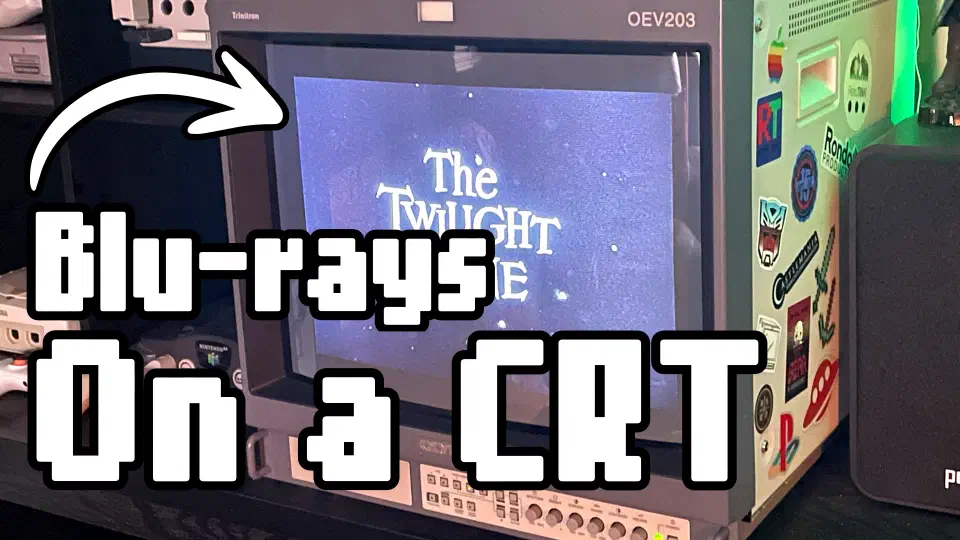
Watching Blu-rays on a CRT
Blu-ray players with analog video out technically work, but weren't designed for CRTs.
The DVD Conversion Process
It sounds counterintuitive that playing a DVD in a Blu-ray player is actually more processing work than playing a Blu-ray disc. DVDs are low-resolution. How can that be complicated?
A Blu-ray disc stores video at a frame rate and aspect ratio that HD TVs support natively. The player reads the frames and sends them to the TV. That’s very straightforward.
A DVD is a different situation. The disc contains interlaced video with 3:2 pulldown baked into the encoding (covered in part one), and the player has to work backward through all of that before de-interlacing and upscaling to a resolution supported by your TV. The processing chain looks like this:
- Read the disc. The red laser reads the disc and the player decodes the MPEG-2 video stream.
- Detect the content type. The player analyzes the signal to determine what it’s working with: theatrical film with a 3:2 pulldown cadence, or native interlaced video shot on a camera.
- Apply inverse telecine or de-interlacing. If it detects film, it applies inverse telecine. It identifies and discards the duplicate fields to reconstruct the original 24 whole progressive frames. If the content is native video, it de-interlaces instead, using motion-adaptive processing to combine the interlaced fields into a progressive image.
- Interpret the anamorphic flag. If the disc is flagged as widescreen anamorphic, the player un-squeezes the horizontally squeezed pixels back to the correct aspect ratio.
- Upscale. The finished 480p image gets scaled up to your output resolution: 1080p on a standard Blu-ray player, 4K on a 4K player.
How Does it Detect Film?
DVDs carry metadata flags. One is a film/video mode flag that’s supposed to tell the player to expect a 3:2 pulldown cadence. The problem is that this flag can be unreliable. Discs get authored incorrectly. A film with video-based bonus features might carry a single flag that doesn’t reflect the mixed content. Some players trust the flag blindly. The processing path mismatches the content, and the result is either combing artifacts on film or judder on video segments.
Good players don’t fully rely on the flag. They analyze the actual field cadence in real time and make their own call, correcting for bad metadata. This is one of the clearest dividing lines between quality players and budget ones. The problem is this isn’t mentioned in the spec sheet. You have to rely on word of mouth or reviews.
The 24fps DVD Problem
Most Blu-ray players do not output a 24Hz signal when playing standard DVDs. Even a lot of 4K players don’t do this. They force all DVDs to upscale and output at a standard 60Hz signal.
Some players will have a “DVD 24p Output” option somewhere that can ignore the repeated field flags in 3:2 pulldown to get true 24p output. If your player has this option and your TV supports it, turn this on.
Upscaling
After all that processing, the player still has to upscale 480p to your TV’s native resolution. On a 1080p TV that’s a 5x jump in each dimension. On a 4K TV it’s roughly 9x. The pixel count gets massive, and the player has to invent pixels that weren’t in the original signal.
Simple upscalers use bilinear or bicubic interpolation by averaging neighboring pixels to fill the gaps. It’s computationally cheap and the results are soft. Edges blur. Fine detail that survived the compression gets smoothed away. Better upscalers use edge-adaptive methods that try to preserve sharpness along diagonal lines and detail that simple averaging would lose. The bigger the TV, the more noticeable the difference between these two methods.
Player quality matters most for DVD on a 4K display, but Blu-ray content is already high resolution and needs less help. DVD is asking the player to do the most work across the biggest gap.
For the enthusiast path, a RetroTINK 4K Pro connected via component video is worth considering. Its IVTC is a core feature on the pro model, and its CRT shadow mask filters mean DVD content, which was mastered for CRT displays, can be presented closer to how a CRT looked. It’s a niche setup, but for someone who wants a vintage feel, nothing works better.
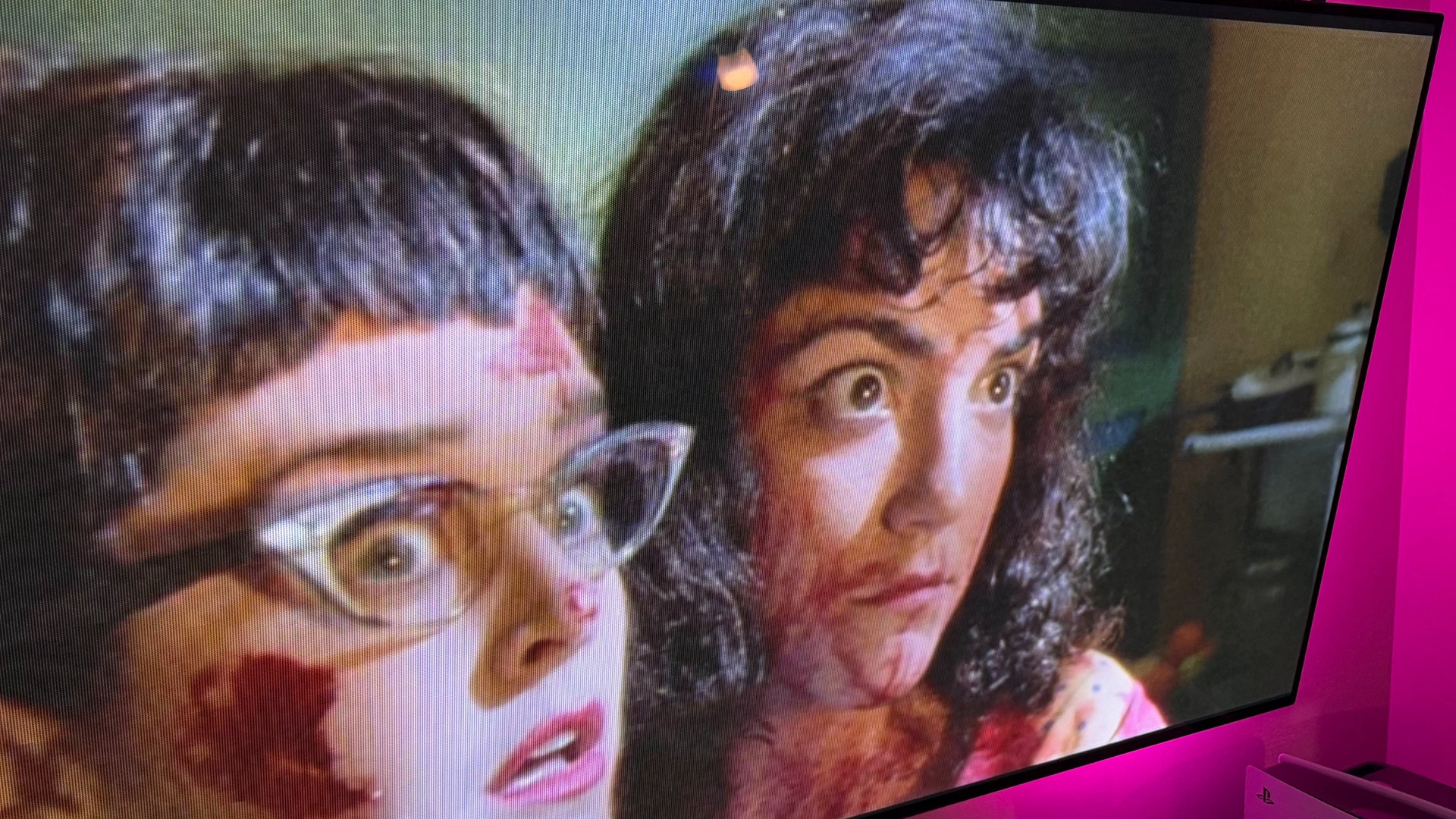
RetroTINK 4K DVD Profile Settings
How to get a great picture from DVDs with the RetroTINK 4K!
The TV Is Part of the Process
Getting the player right is only half the process. Next up is the TV. This gets a little into the weeds and newer TVs do a much better job handling a variety of signals automatically. If it looks good to you, great! If not, below are some things to try.
The 24fps TV Problem
When a Blu-ray player outputs film content at 23.976 frames per second, it depends on your TV to display it without judder.
On a 60Hz TV, 24fps doesn’t divide evenly into 60. The display has to hold some frames slightly longer than others. The same 3:2 cadence math that DVD had to solve is now happening at the display level instead of the disc level. The player did all that work and the TV reintroduces the judder problem.
New TVs can handle a variety of refresh rates. Usually, they are 48, 60, or 120Hz. If a display supports a refresh rate that is divisible by 24 (like 48 or 120) you get every film frame being held for exactly the same amount of time. No judder.
On a 120Hz TV, 24 divides into 120 exactly five times. Every film frame gets held for exactly five display cycles, perfectly even. 120 also divides evenly into 60, so video-based and sports content still look good too.
Motion Smoothing: Turn it Off
Most TVs ship with motion smoothing enabled by default, and it will work against the image the player just made. Motion smoothing generates artificial intermediate frames to push the apparent frame rate higher, and the result is what gets called the “Soap Opera Effect.” Film content that was shot with cinematic motion characteristics suddenly looks like daytime television. Sports look fine with it. Anything that was shot as a film looks wrong.
Every major TV brand has this feature and they all call it something different. (Check the table below for what to search for.) Check your TV’s manual for how to turn it off or adjust it.
Some of these feature settings have options to reduce judder or to apply noise reduction. Sometimes adjusting these settings will help DVDs look better.
Film Mode: Turn it On
On most TVs, the Picture Settings menu has an option to turn on “Film Mode.” It’s called different things depending on the brand. (Check the table below.) Turn this on and judder should be gone.
The cleaner long-term solution is “Filmmaker Mode,” a newer industry standard that automatically disables motion smoothing and other processing when triggered by compatible content. Some newer TVs support it. Worth enabling if your TV has it.
Some streaming apps trigger “Filmmaker Mode” automatically, but Blu-ray players don’t support that flag, so you have to turn it on manually for them. Just set it and forget it. Some TVs allow you to save separate picture settings for each HDMI input.
| Brand | Smoothing Name | Film Mode Name |
|---|---|---|
| Samsung | Auto Motion Plus/Picture Clarity | Film Mode |
| LG | TruMotion/Clarity | Real Cinema/Cinema Screen |
| Sony | MotionFlow | CineMotion |
| Vizio | Smooth Motion Effect | Film Mode |
| TCL | Action Smoothing/Motion Clarity/Motion Enhancement | Natural Cinema/Film Mode |
| Hisense | Motion Enhancement/Motion Clarity/Motion Clearness | Film Mode |
| Panasonic | Intelligent Frame Creation | Film Cadence Mode/Pure Direct |
| Philips | Perfect Natural Motion/Ultra Resolution | Film Detection/Pure Cinema |
The Player Completes the Format
Physical media is more than just the disc. It’s the whole chain of the medium, the player, and the TV working together. There’s a lot of technical tricks going on behind the scenes with DVDs so they could work with both analog CRTs and digital HDTVs. Picking the right equipment and adjusting the right settings makes a thirty year old format look its best today.





Start the conversation