
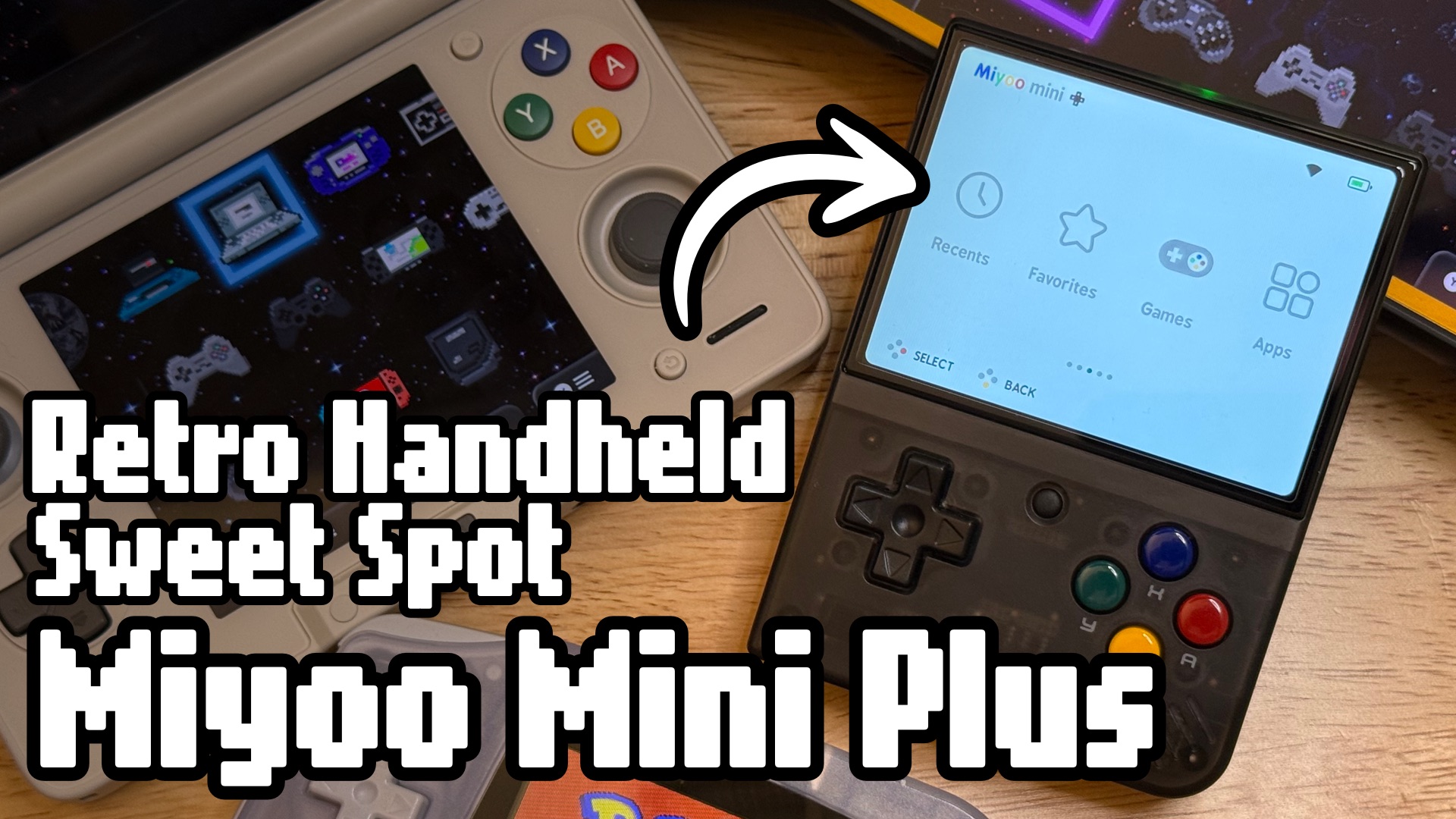
I’ve been acting like Goldilocks when it comes to retro gaming handhelds. It’s hard to decide which to play and when. Some are too big, some are too much trouble to set up, some are pricey, but this portable little gem is just right.
Miyoo Mini Plus
The Miyoo Mini Plus has been around for a couple of years now, and that age works in its favor: a passionate community has had time to perfect the software around it.
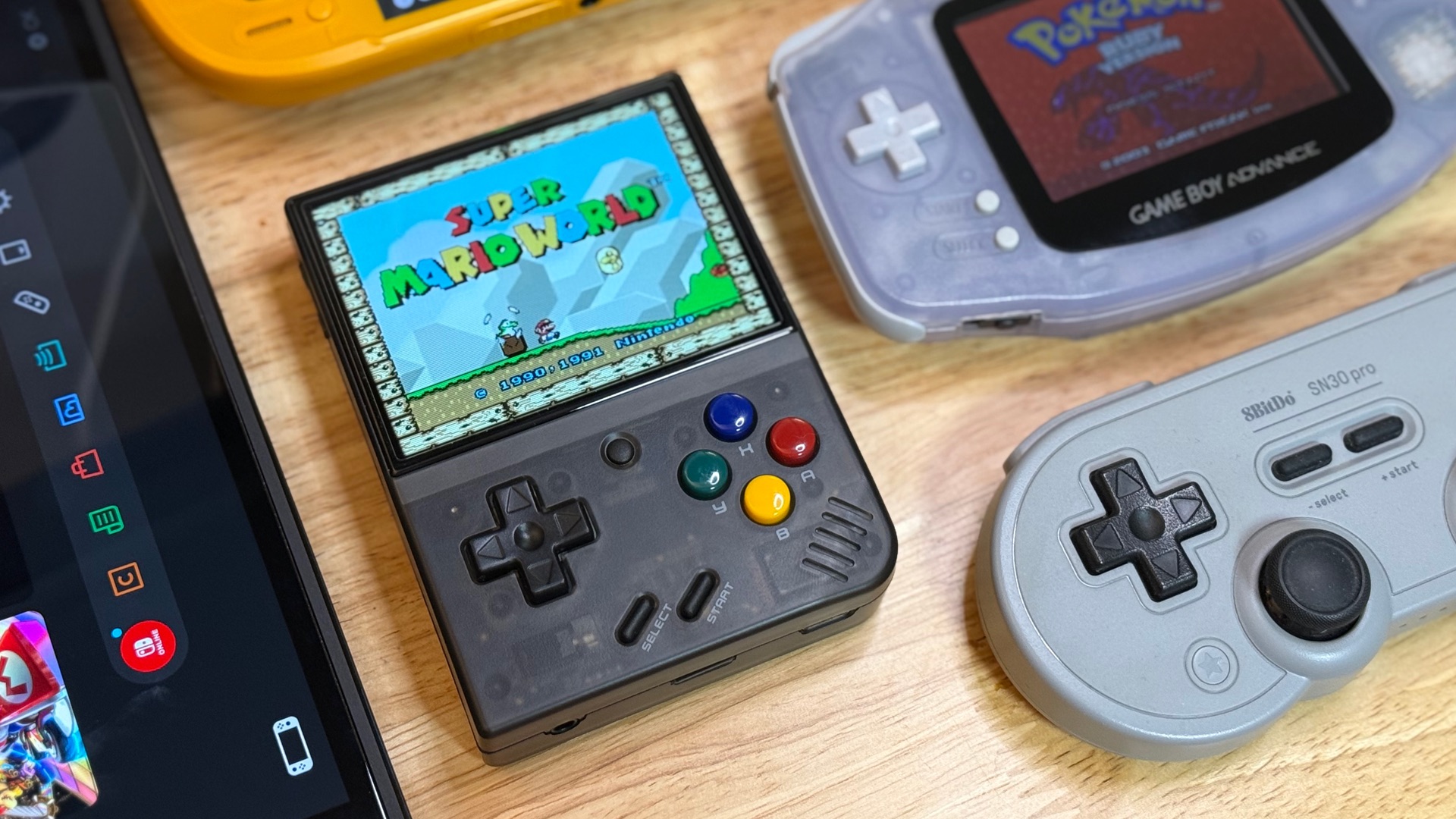
The hardware is decidedly middle-of-the-road (this isn’t a powerhouse) but the buttons and d-pad are excellent, with satisfying tactile feedback that some pricier devices fail to match. The 3.5-inch IPS display runs at 640×480, which is small but crisp enough for everything this device is meant to play. Battery life runs 4 to 8 hours depending on the console, screen brightness, and volume.
It charges via USB-C, weighs just under 100 grams, and connects to Wi-Fi for cover art scraping and wireless file transfers. There’s no touchscreen and no analog sticks. Just clean, classic controls.
It handles anything up to the PS1 that uses a d-pad, including:
- Handhelds: Game Boy, Game Boy Color, Game Boy Advance, Game Gear, Neo Geo Pocket
- Consoles: NES, SNES, Sega Genesis, Sega CD, TurboGrafx-16, Neo Geo, PlayStation
- Arcade cores are available too, though your mileage will vary by game
A couple of caveats: no analog sticks means no N64, and while Nintendo DS is technically functional, it’s limited to games that don’t use the touchscreen. If you need more modern systems like PS2 or GameCube, you’ll want something more powerful like a Retroid Pocket or another Android powered device.
It’s a Steam Deck Mini
Android handhelds are becoming a portable powerhouse.
Ergonomics could be better, but the device is so lightweight it barely matters. It’s perfectly pocketable and the screen is just big enough to see the details that count.
It’s also very affordable at around $70, and typically comes bundled with a case and screen protector.
The Best Part: Onion OS
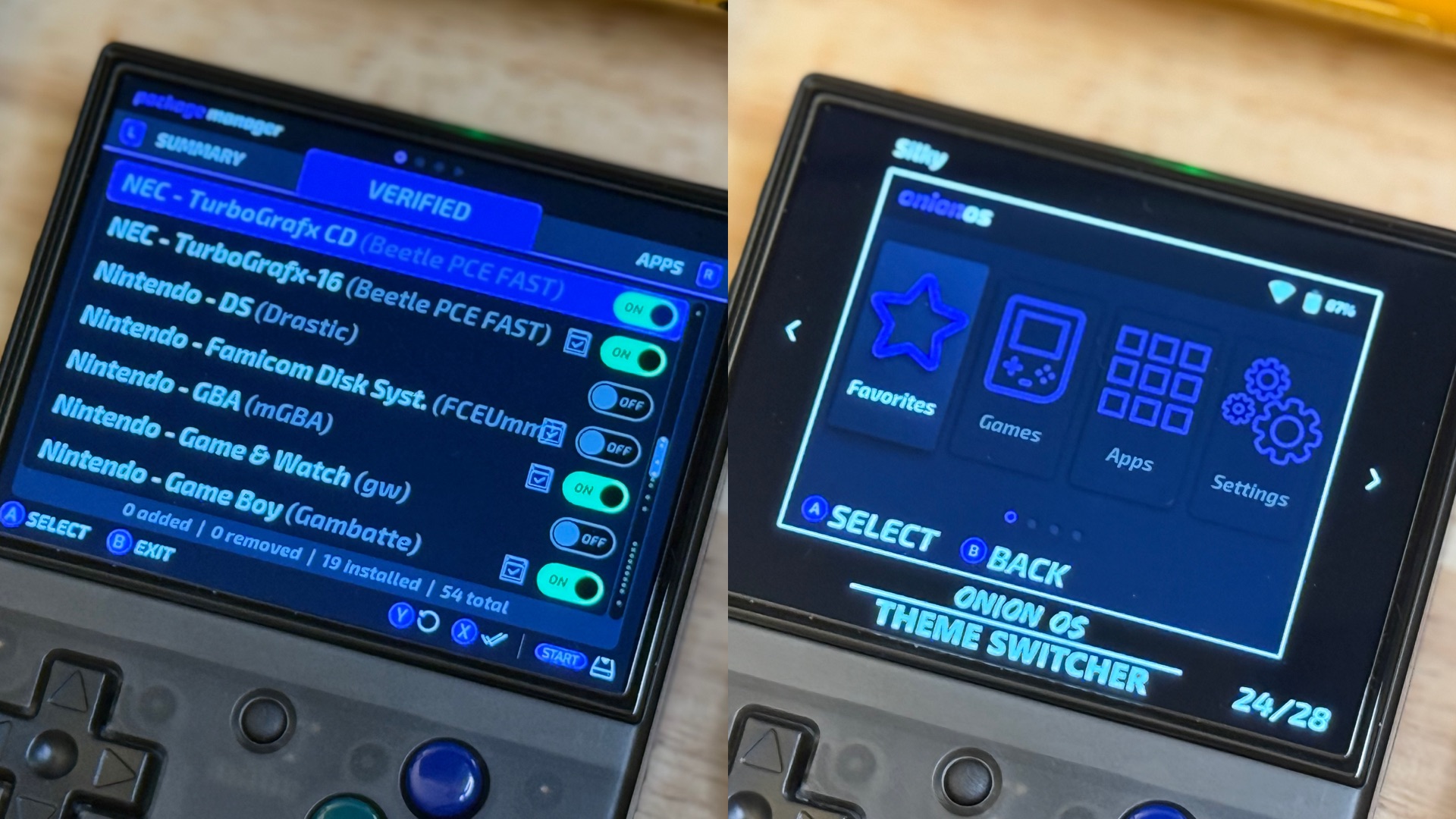
The number one thing that sets the Miyoo Mini Plus apart is Onion OS. Because it’s been around for a few years, the OS has had plenty of time to mature. The UI is clean and fast, organized by console, and there’s almost nothing to configure out of the box.
The standout feature is the Game Switcher app. This is a quick-launch overlay that lets you jump between save states of your recently played games without digging back through menus. It makes the device feel snappy. Beyond that, Onion OS includes:
- A Package Manager for installing and swapping emulator cores and apps
- Built-in RetroAchievements support for earning trophies in classic games
- A theme system backed by a robust community repository
- An integrated cover art scraper (more on that below)
- Over-the-air OS updates
- Optional apps: ebook reader, music player, video player, game activity tracker, and more
- Auto save state on power-off, so you never lose your place
Follow the setup guide to install the latest stable build. It really only takes a few minutes. If you are having trouble, Retro Game Corps has a detailed walkthrough video.
During setup you’ll be prompted to install additional apps and the emulator cores you plan to use. Don’t stress. You can change all of this later in the Package Manager menu. Use the R and L buttons to switch tabs.
The apps I chose to install:
- Activity Tracker — Tracks your game time per title
- Battery Monitor — Keeps a record of battery usage
- Clock — Sets the internal clock
- Gallery — Views screenshots
- Game Switcher — The best feature of Onion OS; switches between save states of recently played games
- Onion OTA Update — Updates Onion OS
- Quick Guide — Info and how-to for the device
- RetroArch — Access to advanced RetroArch settings
- Search — In-library game search
- ThemeSwitcher — Browse and apply themes
- Tweaks — System tweaks and tools
Learn the shortcuts:
Startsaves the gameHold Startsaves and returns to the menu- While selecting a game push
Selectto bring up a menu to add the game to your favorites list Home + SelectBrings up the RetroArch menu when playing a game- The fast-forward option
Menu + Ris a gift for grinding through older games Home + Volumeadjusts brightnessHome + Startadjusts aspect ratio
Scrape Cover Art
This is built right into Onion OS. To scrape cover art for a game:
- Navigate to your game in the main menu. Press
Y. - This opens a side menu. Navigate to
Scraper. - Press
Aand let the script do its work (requires Wi-Fi).
To do this in bulk from your PC, use Skraper.
Get a Better Micro SD Card
The card that ships with the device is low quality and likely to fail and it’s usually preloaded with questionable ROMs. Do yourself a favor and grab a good microSD card from Sandisk, Samsung, or similar. You don’t need high-end Extreme-tier performance or hundreds of gigabytes. Anything with 100 MB/s read/write speeds is plenty.
I’ve had great results with SD cards branded for the original Nintendo Switch. My local Walmart had Onn brand 128GB microSD cards for $15. That’s plenty of space.
Back up your card to your PC occasionally. You don’t want to lose save progress. And remember: you can always transfer ROMs and BIOS files from the original card to your new one.
It’s Almost Plug-and-Play
If you didn’t have to supply your own ROMs, this device would be fully plug-and-play. You can buy pre-built SD cards ready to pop in and play from LITNXT, but setting one up yourself isn’t difficult at all.
Curated ROM sets ready to load onto your device can be found by searching the web for:
Tiny Best Set Go!Pungent Best SetMiyoo Godhand Set
These are specifically for the Miyoo Mini and often include scraped cover and box art. Be sure to use the Onion-compatible versions of screenshots.
Or better yet — start your own ROM library from scratch. Curate your experience around the games you actually want to play. Unlimited game options are harder to choose from. Focusing on a few means you’re more likely to finish them.
If you need BIOS files, check the card the Miyoo Mini came with.
File organization: ROMs go in the roms folder, organized by system. Note that the naming is a little different here, nes is labeled fc (for Famicom), for instance. BIOS files go in the bios folder.
Shaders and Overlays
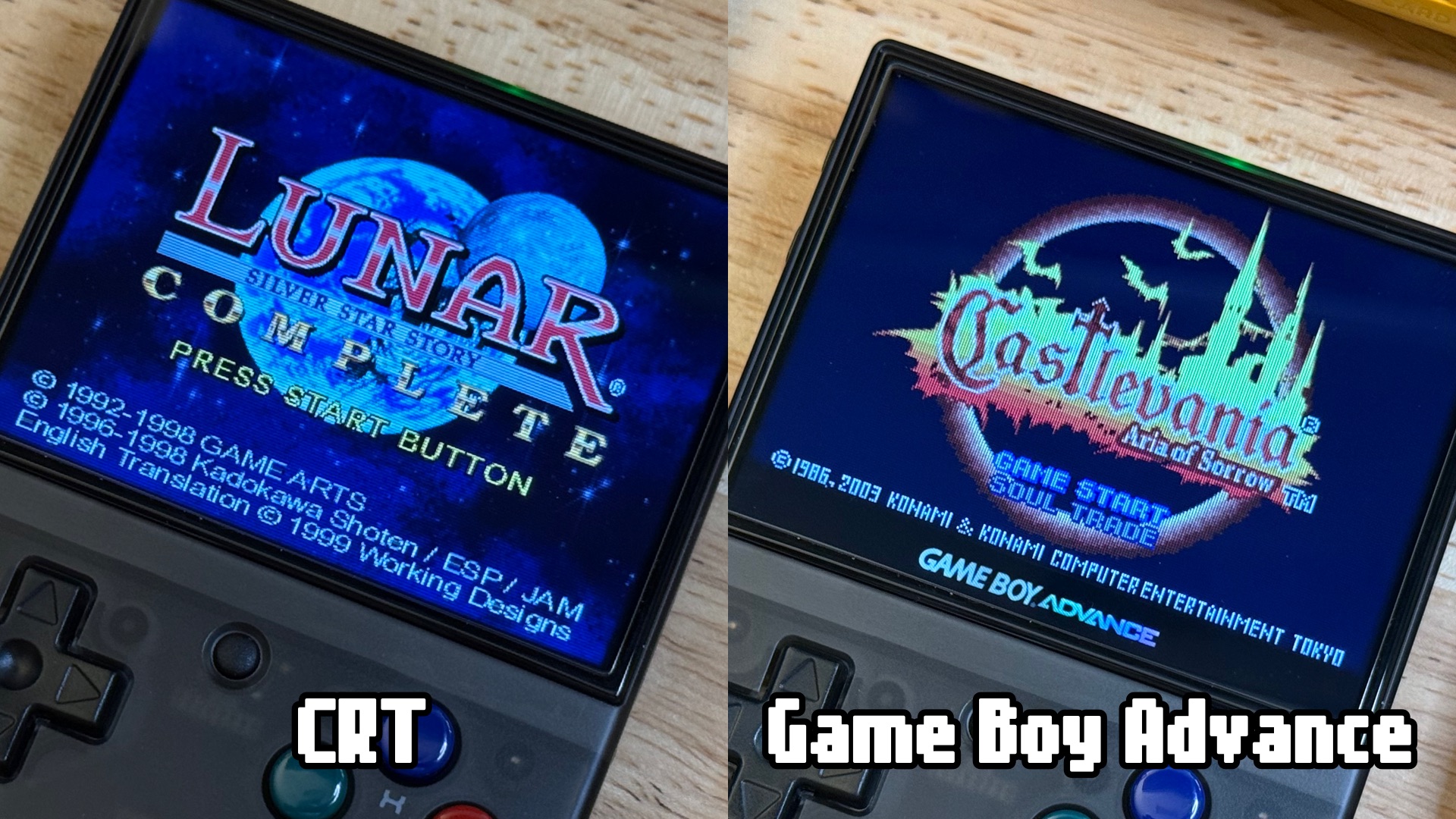
Overlays make the games look polished and fit the screen properly. You can add a pixel grid, CRT scanlines, or border art for systems that don’t fill the screen edge-to-edge without stretching. Experiment to find what you prefer.
My Overlay Setup
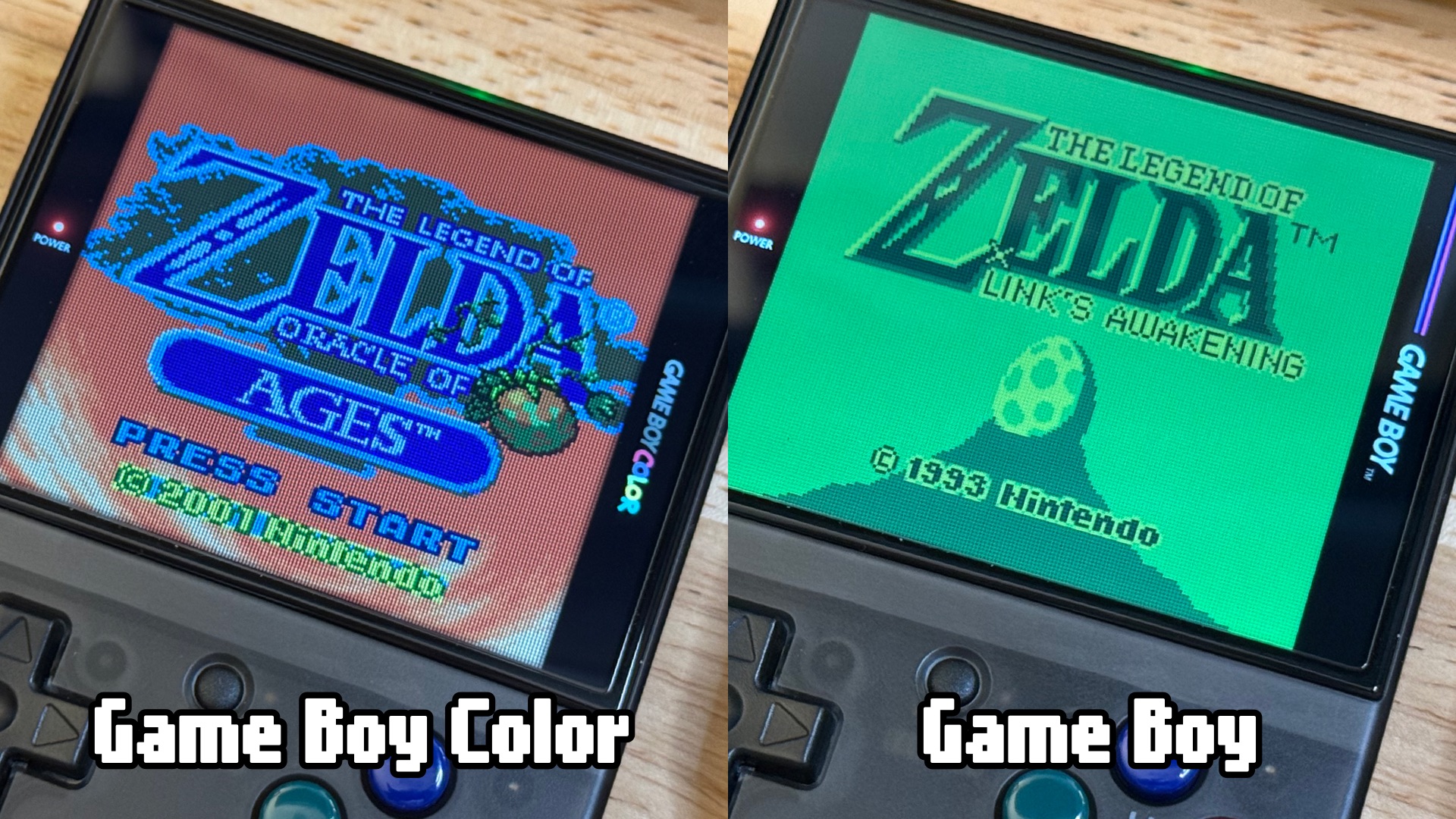
These overlays came with Onion OS. Here’s my preferred configuration by system. I really like the chrome system overlays and pixel grids of the hand held devices.
4:3 CRT — Default for all CRT-era cores (SNES, NES, Genesis, TurboGrafx-16, Arcade)
- Start a 4:3 game (e.g., a SNES game).
- Press
Home + Selectto enter the RetroArch menu. - Select
On-Screen Overlay→Overlay Preset - Select
4-3→CRT→Perfect_CRT→Perfect_CRT.cfg - Press
Bback to the Main Menu - Go to
Settings→Video→Scaling - Turn off all three scaling options.
- Press
Bback to the Main Menu - Select
Quick Menu→Overrides→Save Core Overrides(applies to all games on this core) - Press
Bback to Quick Menu →Resume
GBA — LCD pixel look with Game Boy Advance chrome
- Start a GBA game.
- Press
Home + Selectto enter the RetroArch menu. - Select
On-Screen Overlay→Overlay Preset - Select
GBA→Perfect_GBA→Perfect_GBA.cfg - Press
Bback to the Main Menu - Go to
Settings→Video→Scaling - Turn on
Keep Aspect Ratioamd turn off the other two - Press
Bback to Video - Go to
Video Filter→GBA→Filter for overlays→GBAOffset.filt(shifts the screen up to align with the overlay) - Press
Bback to the Main Menu - Select
Quick Menu→Overrides→Save Core Overrides - Press
Bback to Quick Menu →Resume
GB Color — LCD pixel look with Game Boy Color chrome
- Start a GBC game.
- Press
Home + Selectto enter the RetroArch menu. - Select
On-Screen Overlay→Overlay Preset - Select
GB-GBC→Perfect_GBC→Perfect_GBC.cfg - Press
Bback to the Main Menu - Go to
Settings→Video→Scaling - Turn on
Keep Aspect Ratioand turn off the other two - Press
Bback to Main Menu - Select
Quick Menu→Overrides→Save Core Overrides - Press
Bback to Quick Menu →Resume
GB — LCD pixel look with original Game Boy chrome
- Start a GB game.
- Press
Home + Selectto enter the RetroArch menu. - Select
On-Screen Overlay→Overlay Preset - Select
GB-GBC→Perfect_GB→Perfect_GB.cfg - Select
Overlay Opacityand change it to.25(brightens the green screen a bit) - Press
Bback to the Main Menu - Go to
Settings→Video→Scaling - Turn on
Keep Aspect Ratioand turn off the other two - Press
Bback to Main Menu - Select
Quick Menu→Overrides→Save Content Directory Overrides - Press
Bback to Quick Menu →Resume
It’s Got a Modding Community
Check Etsy for custom buttons, grips, docks, shells, and cases. There’s a large, active community around personalizing the Mini. The options are nearly endless.
Advanced Tips
Once your Mini is set up, none of this is required, but it’s there for power users.
Change the Theme
There’s a community-driven Onion OS theme repository with a wide range of options. Download a theme you like, place it in the Themes folder on your SD card, then select it from the ThemeSwitcher app.
Transfer Files Over Wi-Fi
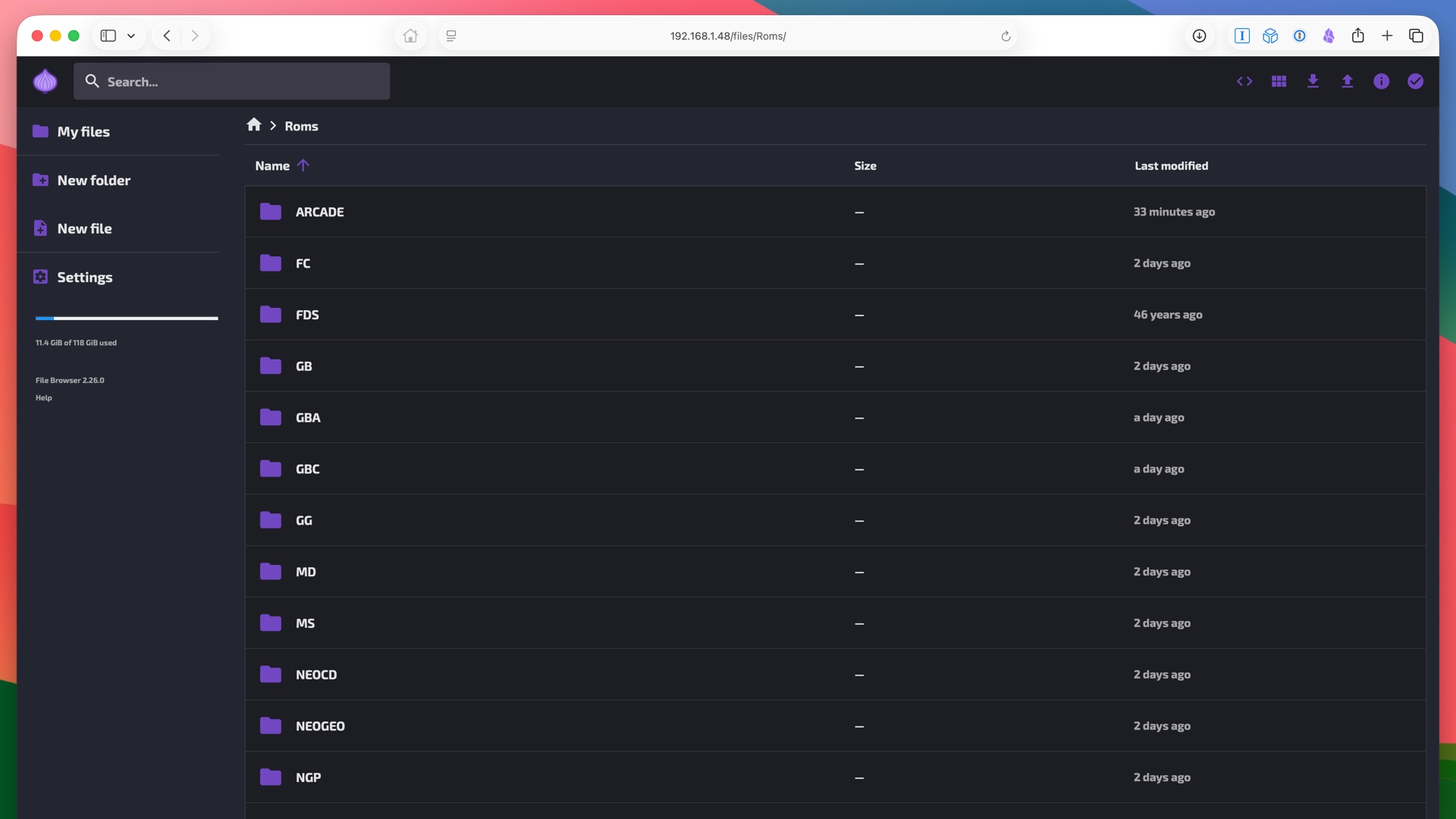
Onion OS has several built-in options for wireless file transfer. The easiest is the web-based file sync — no extra software needed on your PC, just a browser and the same Wi-Fi network.
- From the Main Menu, go to
Apps→Tweaks→Network - Select
HTTP: Web-based file sync→Enable - Press
Bto back up - At the top of the list you’ll see an
IP address: ##### - Enter that address in your browser — you’ll see your device’s file system. Manage away.
- Disable the file sync when you’re done.
From the browser you can upload files and edit existing ones. No need to pull the SD card anymore. After adding or removing ROMs, press Select from the Games Menu to refresh your library.
Overclock
The Miyoo Mini Plus can be overclocked to help with more demanding emulator cores. This video walkthrough covers the process clearly. I’d recommend enabling it only on cores that actually need the boost. There’s no reason to run it all the time.
Change RetroArch Cores
For GBA games, I like to use the gpSP core instead of mGBA whenever possible. It performs better on this hardware. The default isn’t bad, so don’t worry about it unless you have a game that struggles.
To change the core for a single game:
- Navigate to your game in the main menu. Press
Yinstead ofA. - In the side menu, select
Game Core. - Use left/right on the d-pad to cycle through available emulators for that system. Press
Ato launch with your selection.
(Emulators have their own save locations. You will have to move saves from the old emulator save location to the new one in the saves folder.)
Change the Boot Image
Use the Logotweak app to swap out the startup screen. It supports both built-in alternatives and custom images you supply yourself.
To install and use Logotweak:
- Download the app from the OnionUI App Repository and extract it to the root of your SD card. It will place itself correctly in
/Apps. - Launch on device: Eject the card, insert it in your Mini, and power on. Go to
Appsand launch Logotweak. - Select your logo: Cycle through pre-installed images or apply a custom image you’ve placed in the app folder.
- Flash the image: Follow the on-screen prompt to flash it to internal memory. The device reboots to apply the new screen.
For a custom image: Save it as a PNG or JPG at 640×480 resolution to match the Miyoo Mini Plus screen.
Sync Saves and Back Up to Your PC
Syncthing lets you automatically sync save files — and even ROMs — between your Mini and your PC or other devices. This video walks through the install process. It’s a bit involved to set up, but once it’s running you can keep saves in sync across multiple retro handhelds automatically.
The Everyday Carry Handheld
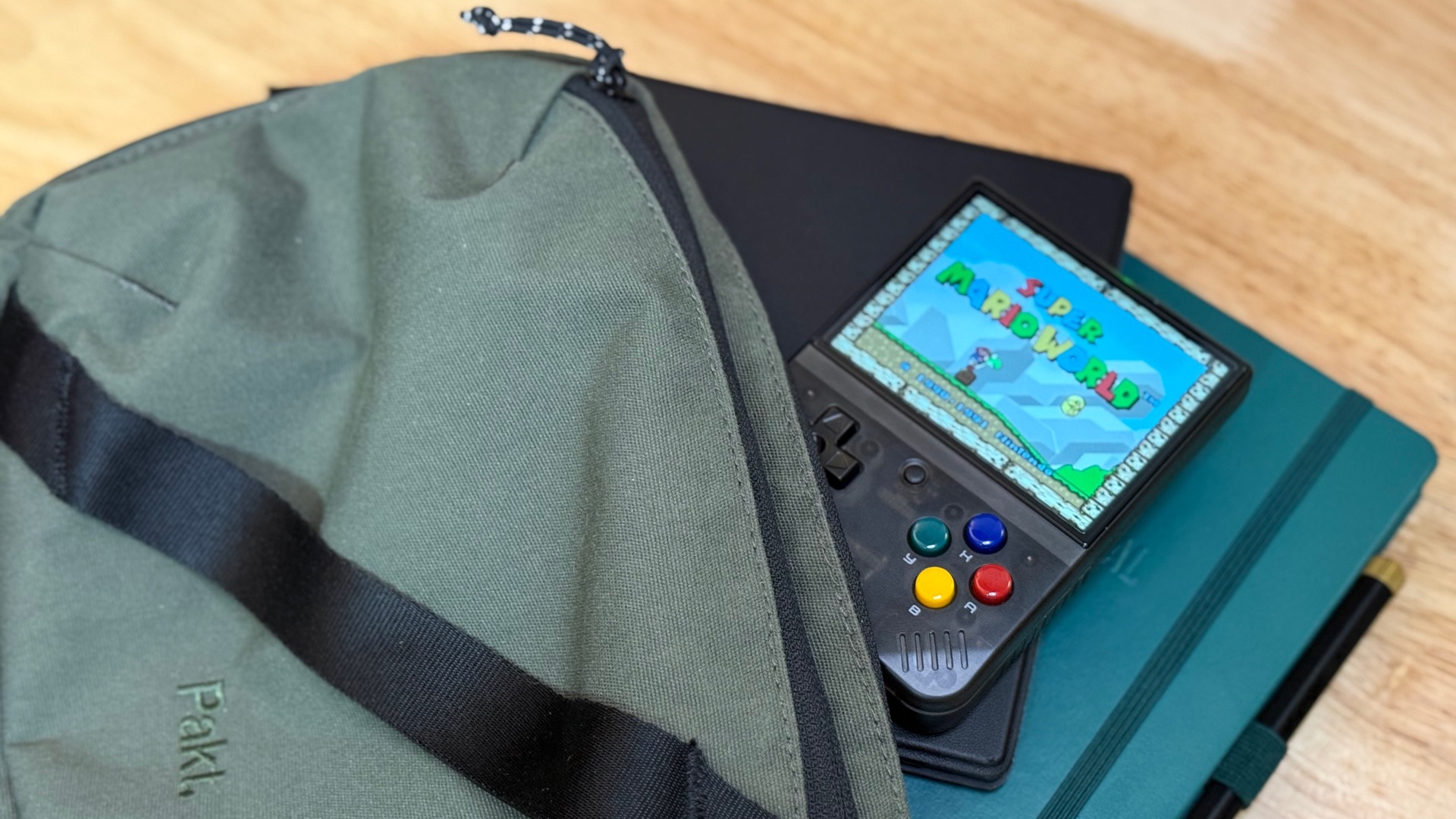
The Miyoo Mini Plus is a perfect everyday carry (EDC). It powers on quickly, auto-saves on power-off, and slips into any pocket. At around 100 grams it’s always available without being noticed.
It’s a genuine alternative to doom-scrolling. Something to reach for while waiting in line or filling a spare five minutes to make some progress on your game backlog. It’s the retro handheld Goldilocks would have picked.

Start the conversation