
Legacy Kindles are Going Dark
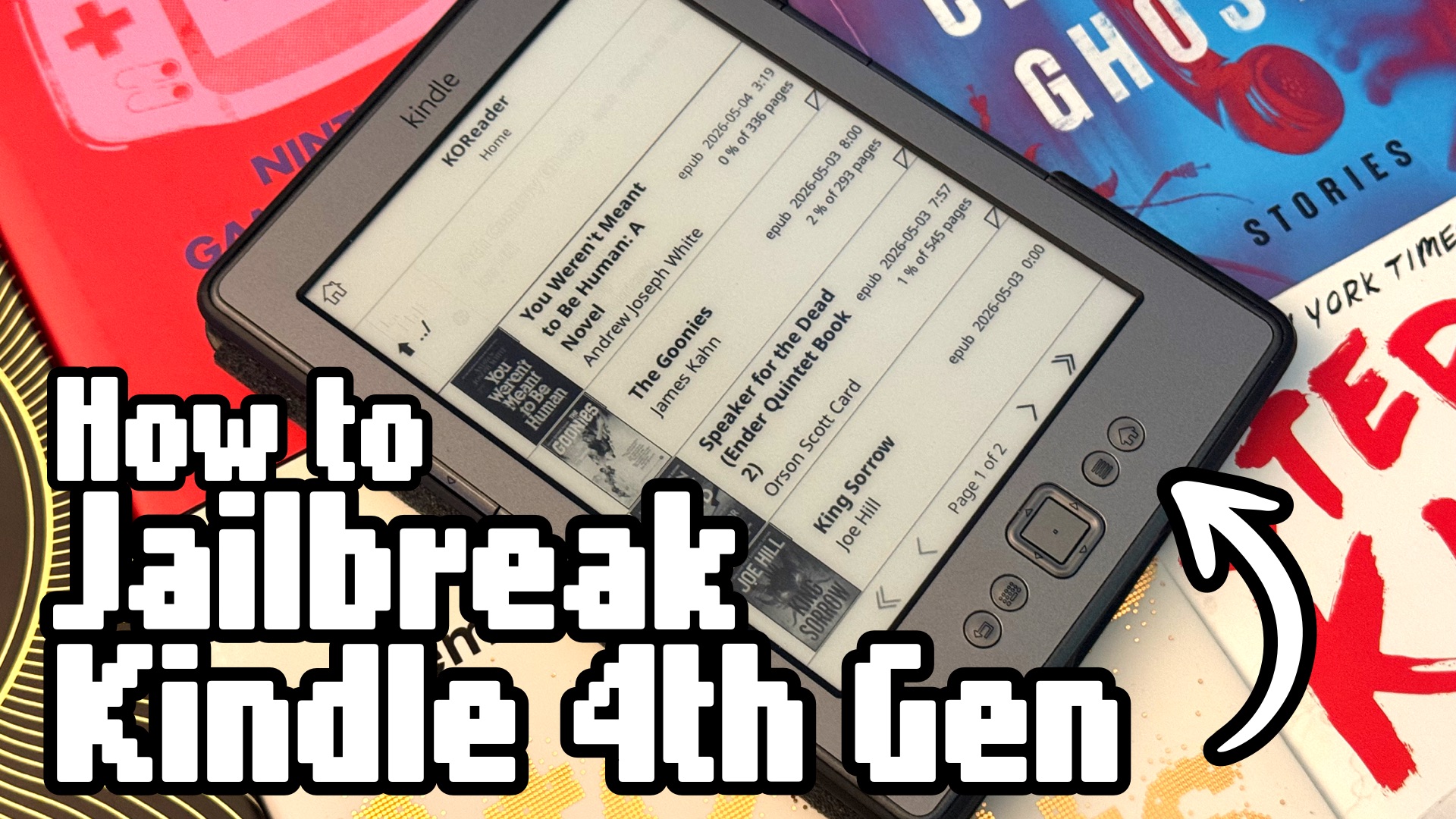
With Amazon ending support for older Kindles in May 2026, the Kindle 4th gen — the one with physical buttons — is a perfect candidate for jailbreaking. Install KOReader and it becomes a clean, independent ebook reader with native EPUB support.
Even if you don’t jailbreak, you can sideload MOBI files with Calibre and keep reading the books already on the device. If you want to keep accessing your Kindle library and have one of the legacy models losing support, you will have to upgrade to a new model.
E-ink tech hasn’t changed much in the last couple of decades and if your device is still functional, upgrade its capabilities and keep it from becoming e-waste.
Kindle 4th Gen Jailbreak Method
I tried to jailbreak my 4th gen Kindle (non-touch) and the instructions on kindlemodding.org didn’t work with that specific model and firmware (4.1.4). The steps below worked instead.
Only use this guide if you have a 4th gen Kindle (non-touch) on firmware 4.1.4.
Attempting to jailbreak your Kindle has the risk of bricking (permanently breaking) the device. Jailbreak at your own risk. (It won’t be able to download any books anyway after May 20, 2026. There’s not much to lose.)
What You Need
- A Kindle 4th gen (non-touch) on firmware 4.1.4
- Check your firmware version by going to Menu → Settings then look in the bottom right corner for the version number.
- If you are on a previous version, update the firmware.
- A computer and USB cable
- 7-Zip or similar archive tool (the files use
.tar.xzformat)
You can factory reset the Kindle before doing this process. You’ll lose any downloaded books, but the device won’t be linked to any online account anymore.
Step 1: Jailbreak
This is the thing that allows other apps to run on the Kindle.
Download: kindle-k4-jailbreak-1.8.N-r18977.tar.xz
Search the page from NiLuJe’s jailbreak thread on MobileRead for the that exact file download.
- Extract the archive and copy
data.tar.gz,ENABLE_DIAGS, and thediagnostic_logsfolder to the root of your Kindle via USB - Eject and unplug
- On the Kindle: Menu → Settings → Menu → Restart
- The device boots into Diagnostics Mode — use the 5-way button to navigate to D) Exit, Reboot or Disable Diags → R) Reboot System → Q) To continue (Use the left 5-way button to confirm.)
- Wait for the normal home screen to appear
A book titled “You are Jailbroken” appears in your library.
Step 2: Install MKK (Mobile Kindlet Kit)
This is what allows the Kindle to run community apps like KUAL.
Download: kindle-mkk-20141129-r18833.tar.xz
Search the page from NiLuJe’s jailbreak thread on MobileRead for the that exact file download.
- Extract and copy
Update_mkk-20141129-k4-ALL_install.binto the root of the Kindle via USB - Eject, then Menu → Settings → Menu → Update Your Kindle
- Wait for the Kindle to restart
An update success message should show.
Step 3: Install the Keystore Update
Download: DevCerts-20250419-KeyStore.zip
Search the page from NiLuJe’s jailbreak thread on MobileRead for the that exact file download.
- Extract and copy
Update_mkk-20250419-k4-ALL_keystore-install.binto the root of the Kindle via USB - Eject, then Menu → Settings → Menu → Update Your Kindle
- Wait for the Kindle to restart
An update success message should show.
Step 4: Install KUAL (the launcher) and Block Amazon Extension
Download: KUAL-v2.7.37-gfcb45b5-20250419.tar.xz
Search the page from NiLuJe’s jailbreak thread on MobileRead for the that exact file download.
- Extract and copy
KUAL-KDK-1.0.azw2into the/documents/folder on the Kindle (not the root) via USB
Download: The latest version of kindle-kual-blockamazon
This is an extension for KUAL that blocks access to Amazon servers so you can restart without having to reinstall Keystore in step 3.
- Extract and then copy
blockamazonto the\extensions\folder via USB - Eject — KUAL will appear as a book in your library
- Open the KUAL book → select
Block Amazon vX.X→ selectBlock Amazon→ It should confirm with “Amazon Hosts Blocked :)”
The extension should block connections to Amazon servers that reset your keys when restarting.
Step 5: Install KOReader
Download: The kindle package from github.com/koreader/koreader/releases
Look for a file named koreader-kindle-vYYYY.XX.zip. (Not the legacy version.)
- Extract the zip — you’ll get
extensions/koreaderandkoreaderfolders - Copy
extensions/koreaderto theextensionsfolder (with the blockamazon extension) via USB - Copy
koreaderto the root of the Kindle (not inside documents) via USB - Eject safely
- Open KUAL from your library → tap KOReader → Start KOReader
🎉 Done! You now have KOReader running. You can turn on Wi-Fi and connect to Calibre.
Ongoing Use
- To add books: Exit KOReader first, then plug in USB and copy EPUB files to the
/documents/folder as normal. KOReader does not support USB transfer while it’s running. - Calibre continues to work exactly as before — just exit KOReader, plug in, and Calibre sees the device normally.
- Add books wirelessly: There’s a Calibre Wi-Fi transfer option with KOReader! You can transfer files over the network without exiting KOReader.
- KOReader reads EPUB, PDF, and most formats natively with no conversion needed.
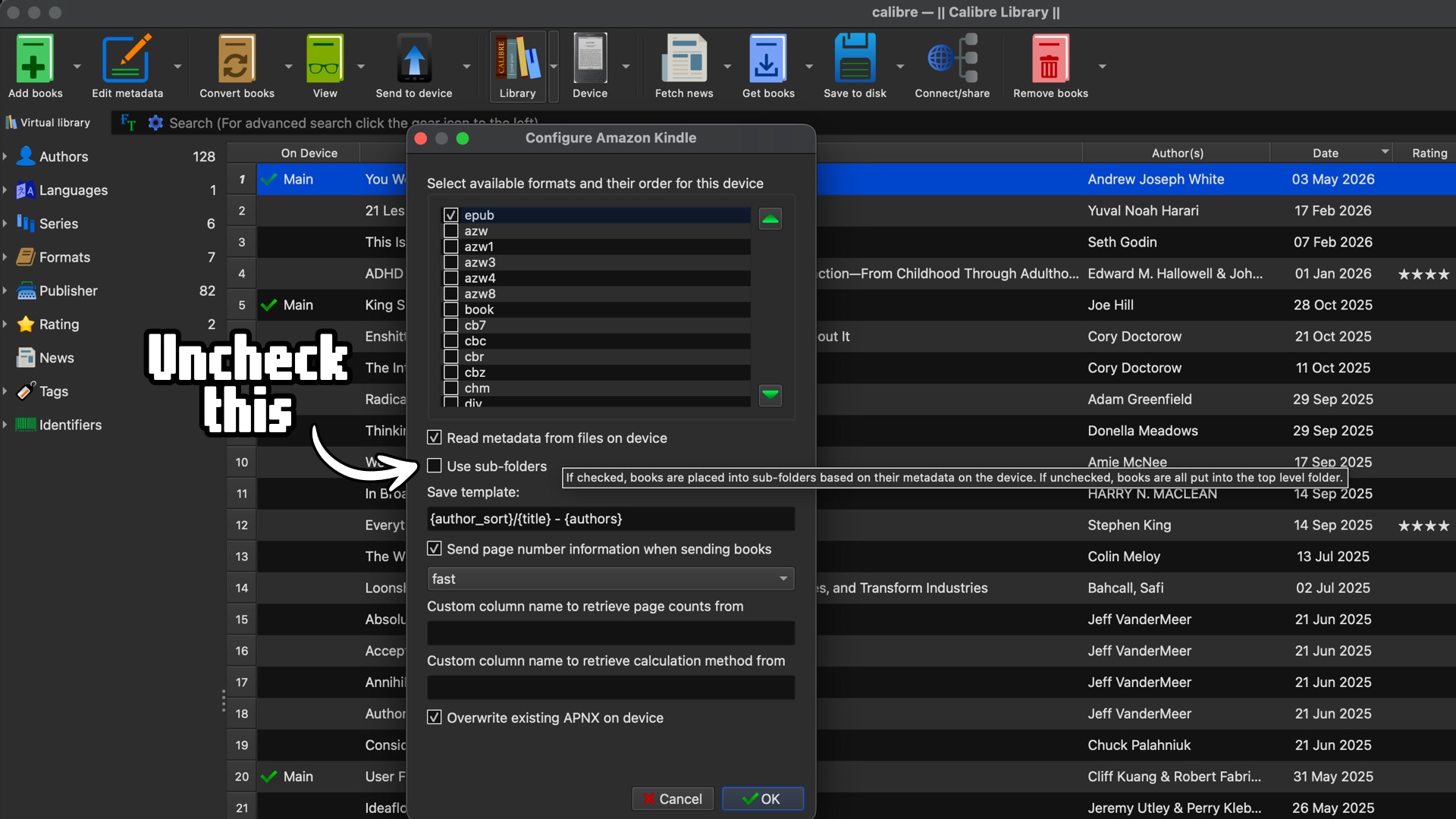
Author folders: By default Calibre puts books in author folders making the KOReader library view not look very good. You can turn that off in Calibre’s device settings after connecting your Kindle.
Keep Your Device Going
It’s disappointing that Amazon has chosen to end the life of legacy devices. I get it. Keeping them secure and updated to read modern file formats takes work and the aging hardware (Some as old as 18 years!) may not have the power to handle the modern Kindle ecosystem.
But … a perfectly working device shouldn’t be discarded. It should have the opportunity to continue to be useful. Jailbreaking gives your legacy Kindle new life.

Start the conversation