
So you’ve decided to start playing CDs. Whether you raided your parents’ collection, started thrift hunting, or just got tired of paying rent on your music library, you’re in the right place.
The good news? Playing CDs in 2026 is surprisingly easy and affordable. You don’t need specialized equipment, and you probably already own something that can do it. Let’s walk through everything you need to know.

Why CDs Are Great in 2026
All the benefits of vinyl, and more, at a fraction of the cost.
You Probably Already Own a CD Player
Here’s something people forget: any DVD player or Blu-ray player will play CDs. That dusty Blu-ray player sitting under your TV? It’s a CD player. That cheap DVD player at Walmart? Also a CD player.
Dedicated CD players still exist, of course, and there are reasons you might want one, but if you’re just getting started, don’t let the lack of a “real” CD player stop you. Pop a disc into whatever optical drive you’ve got and press play.
In this article, I’ll go over what to look for in a CD player and what terms like “DAC” and “transport” mean.

Buying a CD Player: New vs. Used
Buying New
The market for new, dedicated CD players has shrunk, but it hasn’t disappeared. You’ve got a few tiers to consider:
- Budget DVD/Blu-ray players: These do double duty and are available everywhere. They won’t win any audiophile awards, but they sound perfectly good for most people.
- Dedicated CD players: Companies like Sony and Onkyo still make straightforward CD players. You’ll typically get better build quality, a proper display, and a remote that makes sense for music listening rather than movie watching.
- Mid-tier and enthusiast: Brands like Cambridge Audio, Yamaha, and Marantz offer players with higher-quality DACs, better transports, and more robust construction. This is where you start hearing real differences if you have the audio equipment to back it up, but it’s absolutely not where you need to start.
- High-end stuff: Players from brands like McIntosh, Luxman, and TEAC can run into the thousands. If you’re shopping at this level, you probably don’t need this guide. You know what you are doing already, have the equipment to take advantage of this gear, … and make me a little jealous.
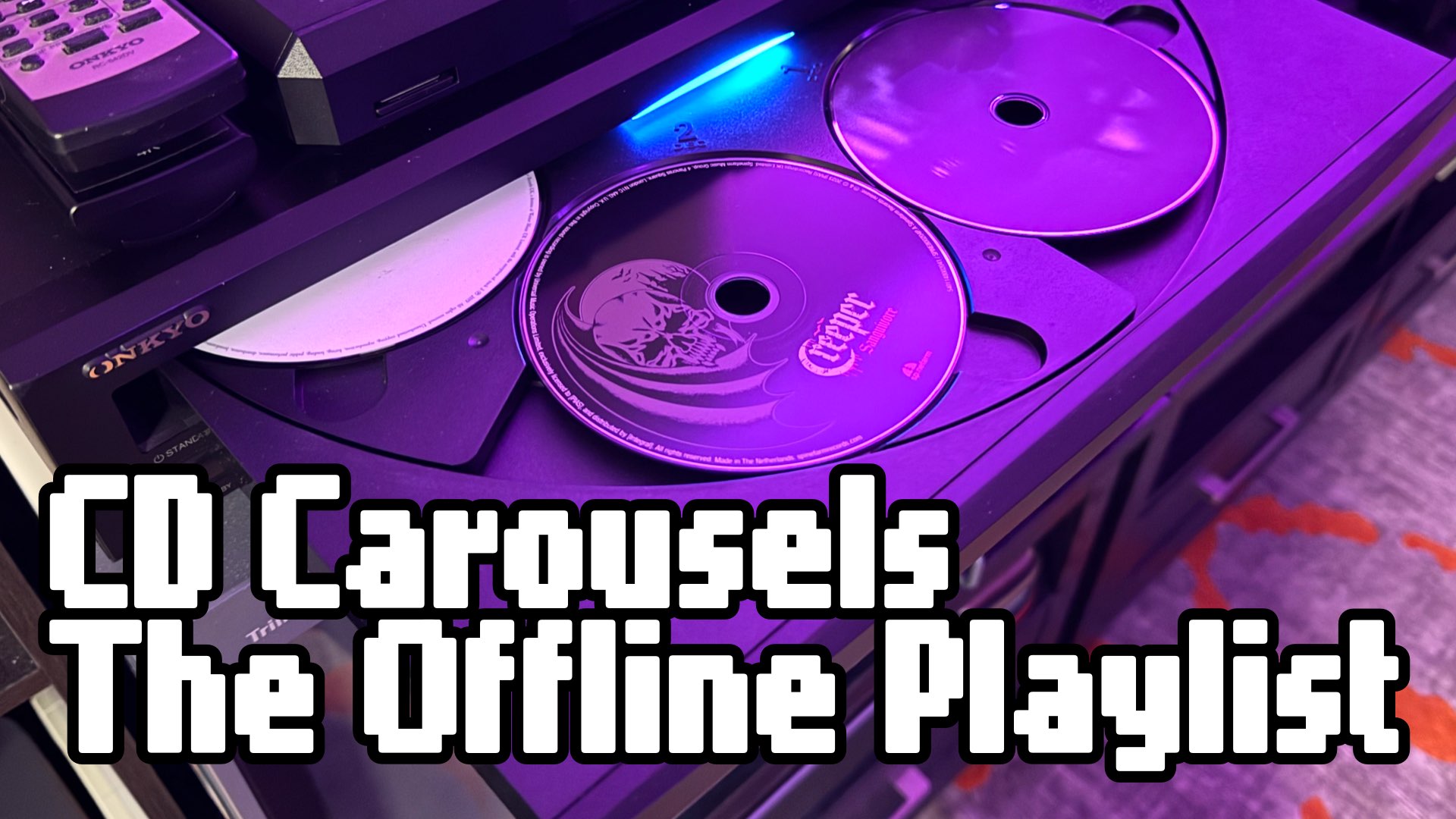
CD Carousels: The Offline Playlist
Ditch the algorithm and make your own playlist with CDs.
Buying Used
The used market is where things get interesting. Because so many people ditched their CD players over the past decade, there’s a massive supply of quality hardware at bargain prices.
What to look for when buying used:
- Test the transport mechanism. This is the moving part that reads the disc, and it’s the most common failure point. If buying in person, bring a CD and make sure it reads, plays, and tracks between songs without skipping.
- Check the tray. It should open and close smoothly without grinding or sticking.
- Does it come with the remote? Replacement remotes are inexpensive, but it’s nice not having that extra cost.
- Does it have a screen? DVD/BR players often don’t have a screen to display the track number or playback info. It might be good to have a screen for this if you don’t want to have your TV screen connected while playing CDs.
- Inspect the outputs. Make sure the RCA jacks aren’t corroded and any digital outputs look good.
- Stick to reputable brands. Sony, Onkyo, Denon, Yamaha, Marantz, and Cambridge Audio all made players built to last.
- Prioritize a digital output. Whether it’s optical or coaxial, a digital out means you can use the player as a pure transport and pair it with a modern DAC down the road. This turns even a cheap used player into a long-term keeper.
- Don’t overpay for “audiophile” hype. A solid mid-range player from a good brand will sound excellent. You don’t need a $2,000 vintage player unless you really want one and have a sound system where you can hear the difference.

Transport vs. DAC: What These Terms Mean
You’ll see these terms thrown around in CD player discussions, and they’re worth understanding.
Transport refers to the mechanical part of a CD player: the motor, laser, and tray mechanism that physically reads data off the disc. Every CD player has a transport.
DAC stands for Digital-to-Analog Converter. This is the chip (or circuit) that takes the digital data read from the CD and converts it into an analog audio signal your ears can actually hear. Every CD player also has a DAC built in.
What’s a good DAC? That depends on your listening taste. DACs all sound a little different. Some people like old DACs (like the one in the original launch PlayStation 1) and others prefer the modern DACs in new receivers.
So why do people talk about them separately?
Because you can split these jobs between devices. If you use the analog RCA outputs on your CD player, you’re using its built-in DAC. If you use the digital outputs (optical or coaxial), you’re bypassing the player’s DAC and sending raw digital data to an external DAC. This might be a standalone unit, a receiver, or a soundbar.
When should you care about this? Honestly, most people don’t need to. The DAC in a decent disc player from the last 20 years is going to sound great. The scenario where this matters is if you have a very cheap player but also own a nice receiver or powered speakers with their own DAC. In that case, using the digital output lets the better hardware do the conversion.
If you’re just getting started, use whatever outputs you have and don’t think twice about it.

Outputs Explained
This is where people’s eyes tend to glaze over, but it’s simpler than it looks. Most CD players have some combination of three output types:
RCA Analog (the red and white jacks)
This is the most common and the easiest to use. The CD player does all the work reading the disc, converting the digital data to an analog audio signal, and sending it out through those familiar red (right channel) and white (left channel) cables. You plug these directly into powered speakers, a receiver, or anything with an auxiliary input.
Using this output on old DVD players will not sound very good. Only use this connection with higher end disc players with quality DACs.
Use this when you want simplicity, you’re connecting to powered speakers, or your receiver/amplifier has RCA inputs (most do).
Optical Digital (Toslink)
This is a small, square-ish port that uses a fiber optic cable to send the raw digital audio signal to another device. The CD player reads the disc but doesn’t convert the signal. It passes that job to whatever you plug into.
Use this when you have a receiver, dedicated DAC, or soundbar with an optical input and you want that device to handle the digital-to-analog conversion instead of the CD player.
Coaxial Digital
Looks like a single RCA jack (usually orange) but carries a digital signal, just like optical. It sends raw digital audio to an external device for conversion. Some audiophiles prefer coaxial over optical for technical reasons, but for most listeners the difference is negligible. It’s more common on DVD/Blu-ray players than optical.
Use this when you have a receiver, dedicated DAC, or soundbar with a coaxial input and you want that device to handle the digital-to-analog conversion instead of the CD player.
Fun Fact: RCA and coaxial cables are basically the same, just painted different colors. No need to buy a new coaxial if you have some RCA cables already.
Look for Digital Outputs
Regardless of price or type, you want digital out: either optical (Toslink) or coaxial. This is the single most future-proof feature a CD player can have. A digital output lets you use the player as a transport only, bypassing its internal DAC and sending the raw digital signal to a modern external DAC, receiver, or soundbar instead. Even a thrift store DVD player with a digital audio out can send a signal to a modern, quality DAC and sound fantastic.


How to Connect Everything
Here’s where we get practical. Your setup depends on what you already own.
Scenario 1: You Have a Receiver or Amplifier
This is the easiest path. Connect your CD player to any available input on your receiver using RCA cables (analog) or preferably an optical/coaxial cable (digital). Switch to that input and press play. Your receiver handles amplification and sends the sound to your speakers.
You’ll need RCA cables or an optical/coaxial cable.
Scenario 2: You Have Powered Speakers
Powered speakers (also called active speakers) have their own built-in amplification, so you don’t need a receiver. Connect your CD player’s analog RCA outputs directly to the speakers. Many powered speakers accept RCA input directly; some use a 3.5mm aux input, in which case you’ll need an RCA-to-3.5mm cable or adapter (avoid this option if you can). Higher-end speakers will have an internal DAC with digital inputs.
You’ll need RCA cables, or an RCA-to-3.5mm adapter, or a digital optical/coaxial cable depending on your speakers.
Scenario 3: You Have a Soundbar
Most soundbars have an optical input. Connect your CD player’s optical output to the soundbar and you’re done. If your soundbar only has HDMI, a DVD/Blu-ray player with HDMI out is your only option. Use HDMI for the video connection and the audio will come through the soundbar.
You’ll need an optical cable, or a DVD/Blu-ray player with HDMI.
Scenario 4: Starting From Scratch
If you have nothing and want to build a simple, good-sounding CD setup on a budget, here’s what I’d recommend:
- A used or budget CD/DVD player. Look for that digital out port!
- A pair of powered bookshelf speakers. Edifier R1280T Powered Bookshelf Speakers are an excellent starter option. Klipsch Reference R-40PM Powered Bookshelf Speakers are a nice upgrade.
- Digital audio cable or RCA Cables whichever your speakers support.
That’s it for a setup that sounds genuinely good. No receiver needed, no complicated wiring.
For a step up, consider adding a stereo receiver and passive speakers instead of powered speakers. This gives you more flexibility, more power, and room to upgrade individual components, like a record player, over time.
Where to Look for Used
Playing CDs shouldn’t cost a fortune. There are plenty of options out there to find this equipment used for a bargain. You might even find a good pair of speakers while hunting! Old tech is still good tech.
- eBay — The biggest inventory of used CD/DVD players you’ll find anywhere. Search for tested/working units from reputable sellers.
- Facebook Marketplace & Craigslist — Great for local deals where you can test before buying.
- Thrift stores (Goodwill, Salvation Army, etc.) — The ultimate treasure hunt. CD/Blu-ray players show up regularly. Test before you buy if the store allows it, or be prepared to return if it doesn’t work.
- Pawn Shops — They often have piles of audio/video equipment. More expensive than a thrift store, but will be in better shape and more likely to include the remote.


Power up Some Lasers
Playing CDs doesn’t require a big investment or specialized knowledge. At its simplest, it’s a player, a pair of speakers, and a cable. You might already have everything you need.
The real joy of CDs is in the ownership. No algorithms, no subscriptions, no disappearing catalogs. Just your music, on your terms, whenever you want it.
Got questions about your specific setup? Drop a comment below or reach out. I’m always happy to help someone get their discs spinning.

Start the conversation