

A Story in Three Acts
After building a mid-range gaming PC and giving SteamOS and Bazzite a try, I’m hooked on PC gaming and ready to leave consoles behind.
Act 3: Crawl Back to Windows 11
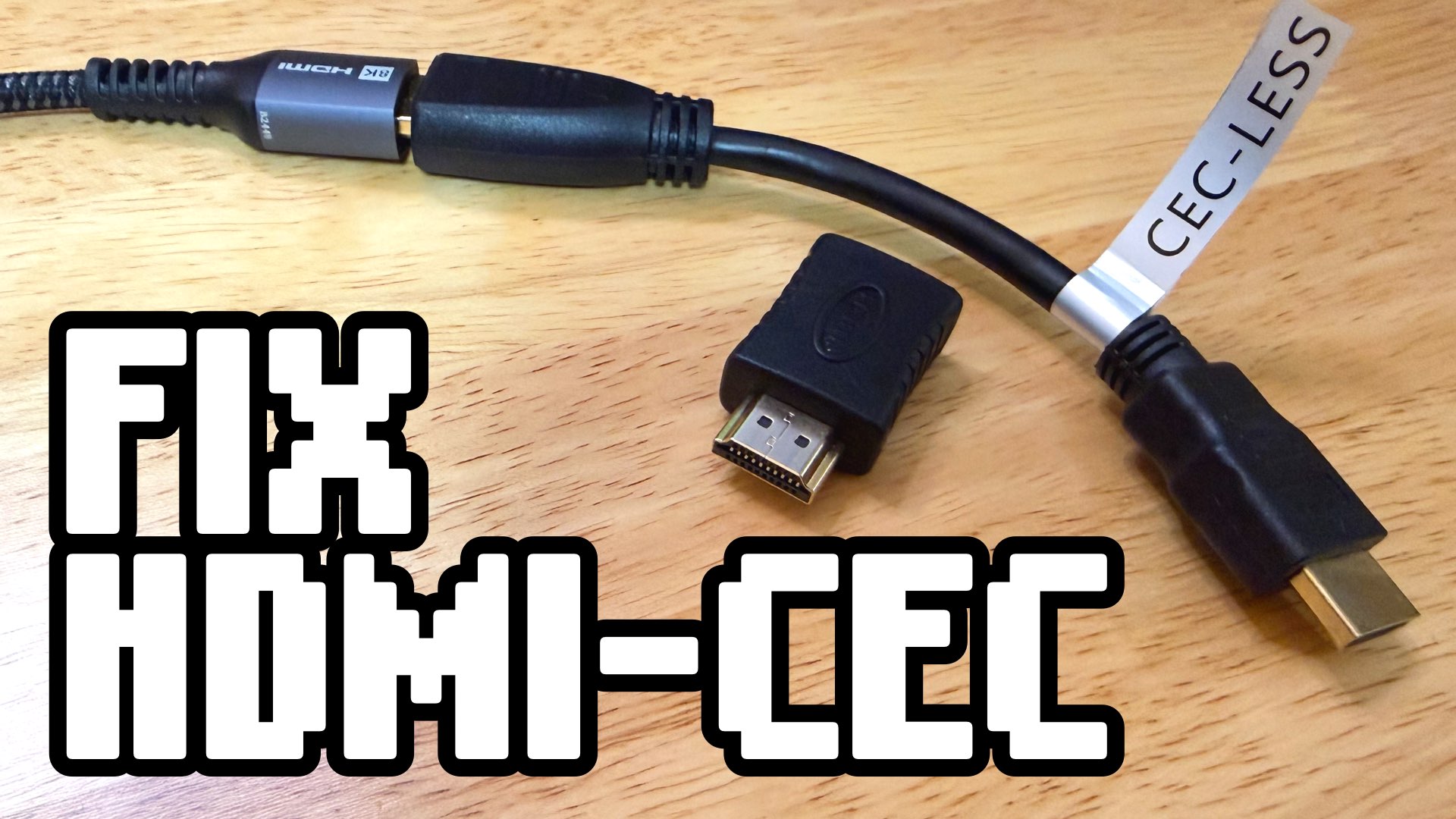
After weeks of troubleshooting HDMI 2.1 issues in Linux/Bazzite, I made the decision to return to Windows 11. It wasn’t an easy choice. I enjoyed the lean, gaming-focused experience that Bazzite provided. But when I’m not getting to use the 4k, HDR, 120Hz, VRR display I have, Linux doesn’t meet my needs.
Here’s what brought me back:
HDMI 2.1 works. No dongles, no experimental drivers, no crossing your fingers every time you boot. Plug in the HDMI cable, and you get full 4K 120Hz with VRR immediately. For a living room gaming setup, this alone justified the switch.
Game store compatibility. Steam worked beautifully on Bazzite, but Xbox Store and Epic Games Store were constant headaches. Some games launched through Heroic or Lutris, others didn’t. Windows eliminated all that friction.
Latest GPU drivers. Windows still gets driver updates first, and you have access to all the tweaks and settings the driver software provides.
Surprising performance gains. I expected Windows to be bloated and slower. But after de-bloating (more on that below), I actually saw better frame rates and more consistent frame times than I had in Bazzite. I know this is the opposite from what I read online, but that didn’t seem to be the case.
The irony isn’t lost on me: I built a “Steam Machine” to escape the closed ecosystem of consoles, tried to embrace the open-source philosophy of Linux, and ended up back on Microsoft’s OS. But, it’s still a Steam Machine. It boots straight to Steam Big Picture Mode, I game from the couch with a controller, and the OS stays out of the way.
How to Make Windows Tolerable: De-bloat It!
Out of the box, Windows 11 is a mess. Pre-installed games you’ll never play, constant telemetry phoning home, ads in the Start menu, and a setup process that aggressively pushes you toward a Microsoft account. For a dedicated gaming machine, all of this is unnecessary baggage.
The solution? De-bloat Windows before or immediately after installation.
Option 1: Start Clean with an Unattended Installation
The best approach is to create a custom installation using an autounattend.xml file. This automates a clean, customized Windows 11 setup that:
- Removes bloatware during installation (Candy Crush, TikTok, Disney+, apps you don’t need)
- Disables telemetry and advertising before Windows even boots
- Streamlines the interface by cleaning up the start menu and the taskbar
- Applies performance and privacy tweaks from the start
You end up with a lean system with no wasted time uninstalling junk or hunting through settings afterward.
I used this tool, with default settings, to create an autounattend.xml installer.
Option 2: De-bloat an Existing Installation

Already have Windows 11 installed? You can still clean it up with a de-bloat script. I recommend Win11Debloat. It’s well-maintained, transparent about what it changes, and gives you control over the process.
Run the script, let it remove the cruft, and you’ll have a noticeably snappier system that respects your time and attention.
A Word of Caution
Don’t go wild with these tools. Stick with the default or recommended settings, especially if you’re new to this. Removing the wrong Windows components can break functionality. Stuff like Windows Update not working, the Microsoft Store failing to open, or system apps behaving strangely.
Only tweak advanced settings if you know what you’re doing and understand the consequences. The goal is a faster, cleaner Windows install, not a broken one.
Once de-bloated, Windows 11 transforms from an intrusive, ad-laden mess into something tolerable.
I Made a Few Upgrades
With AI companies, data centers, and supply chain issues threatening to drive computer component prices up significantly in 2026, I decided to make some upgrades now rather than pay the premium later. My original mid-range build was solid, but I wanted more 4k gaming and higher frame rates to take advantage of my fancy OLED TV.
The Pre-Built Detour (That Didn’t Work Out)
I briefly flirted with the idea of upgrading to a pre-built gaming PC that was on a Black Friday special. Brought it home, unboxed it, and within days it became clear I’d received a lemon. Boot crashes, random crashes, Windows components corrupting, sent me down a path of reinstalling Windows and wasting a weekend trying to get it to work.
I sent it right back and bought a new GPU for my current rig instead.
GPU: RTX 5070 Ti OC 16GB
This was the big one. While shopping at Walmart for something minor, I noticed they had a stack of video cards that weren’t an inflated price! I upgraded to the PNY NVIDIA GeForce RTX 5070 Ti OC 16GB, and the difference was immediately noticeable. I can now easily hit 4K at 60+ fps in just about any game, with plenty of headroom for demanding titles. High settings, ray tracing enabled, smooth gameplay. This card handles it.
They also had regular 5070s in stock, but I feel like 12GB of VRAM is the minimum (I’d avoid 8GB), so I spent a bit extra for the 16GB. Since I’m playing at 1440p–4K, I want all the VRAM I can get for high-rez textures.


Power Supply: Corsair RM1000x
The Corsair PSU that I used with my original build worked fine, but it had one annoying flaw: under load, the fan would ramp up and become noticeably loud. For a living room setup where the PC sits near the TV, that whirring was distracting during quiet moments in games. 750w was the minimum the 5070 Ti would allow, so I needed an upgrade.
I swapped it out for a CORSAIR RM1000x ATX 3.1 PCIe 5.1 Ready Fully Modular 1000W Power Supply. This one is platimum rated and has the new power connector for modern CPUs. I was going to go with an 850w PSU, but the one I ordered came with a different brand of PSU in the box … and it was clearly used. I was scammed and sent it back. Instead, I bought the only thing my local Best Buy had in stock that met my wattage needs. 1000w is overkill and it breaks the budget, but I didn’t want to wait to start gaming. My holiday break was about over.
Even under heavy gaming loads, it’s whisper-quiet and cool. The modular cables and the native 12V-2x6 connector to the GPU made cable management easier and cleaner. I will never buy a cheap PSU again.
Storage: Another 2TB M.2 SSD (with Heatsinks)
I bought a 2TB M.2 SSD for the pre-built PC that I sent back. Since I installed it and used it, I couldn’t return it, so my old rig got the upgrade. I also installed heatsinks on both drives to keep temps in check during long gaming sessions. Not strictly necessary, but cheap insurance for drive longevity.
Keyboard/Trackpad Combo for Couch Gaming
One problem of PC gaming from the couch: you can’t wake the system from sleep with a controller (unless you’re using an Xbox Wireless Adapter, but you still have to type a PIN). Rather than get up every time, I grabbed a compact wireless keyboard and trackpad combo. It lives on the coffee table, handles the occasional Windows navigation, and makes the whole setup feel more console-like.
How to Set up Windows for the LG C1 OLED
There are a few display settings to adjust for TV gaming. Here’s what I did:
- In Windows System/Display settings, set the display resolution to 4k (3840x2160)
- Scale the Windows interface to a percent that is readable from the couch (I did 200%)
- Under Advanced Display turn on HDR and pick the 120 Hz refresh rate.
- Under Accessibility/Mouse Pointer and Touch, adjust the mouse pointer size so it’s easy to see from the couch
- On the LG TV, go to Settings in the Game Optimizer and turn on G-Sync or AMD Freesync depending on your GPU

Bazzite is Great, but Windows 11 is … Fine
I enjoyed using Bazzite when I had it working and playing Steam games. The lack of HDMI 2.1 support and all the troubles making other game stores work, brought me back to Windows. If I didn’t need the these two things, I would have stayed with Bazzie. Hopefully, Linux will adapt and I can try it again.
Of course, a default install of Windows is a horrible experience with the bloat, the ads, the useless AI features, and the notifications. Using a custom de-bloat installer goes a long way to fixing all that. Then Windows becomes a OS that sits in the background and gets out of the way.
The upgrade to the RTX 5070 Ti was the most suprising to me. The performance increase was kinda staggering. It all works great with my existing PCIe 4 motherboard and DDR4 RAM. After adding the new PSU, the price tag was a little higher than I wanted. I may start selling some game consoles. What this rig can do is far and beyond what the most powerful console can do. Everything stays cool and quiet inside the small but mighty Lian Li A3 case.
Once set up, I’m spending most of my time in Steam’s Big Screen Mode getting as close to a console experience yet. I’m excited for what PC gaming is going to offer in 2026.

Start the conversation